| Custom Component | Page/Flow | Description |
|---|---|---|
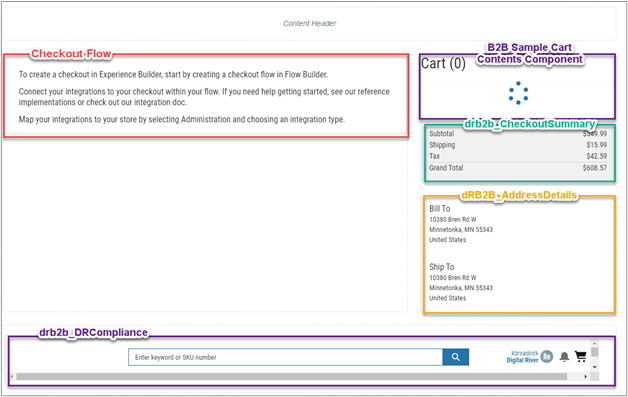
| drb2b_cartContents | Checkout Page | Use this component to display cart item details such as item name, SKU, price per unit, total price, and so on. You can configure this component in the Experience Builder. |
| drb2b_addressDetails | Checkout Page or Subflow | Use this component to display address details such as Bill To and Ship To. You can configure this component in the Experience Builder or flow. |
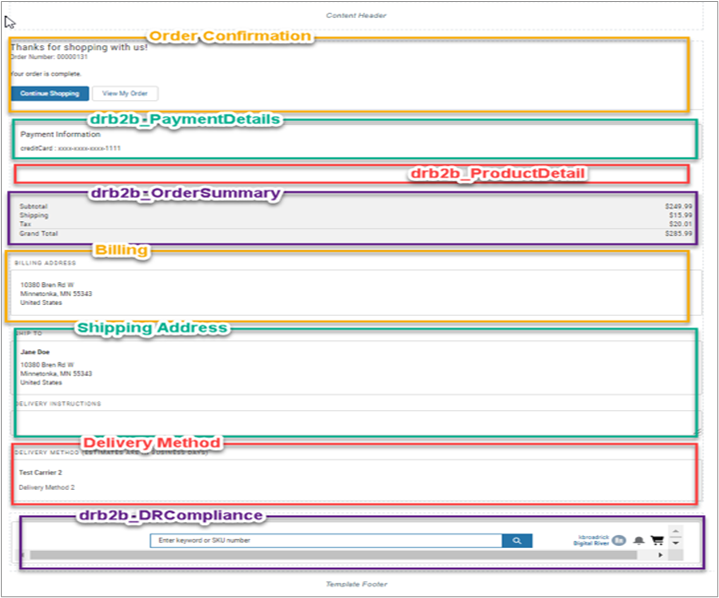
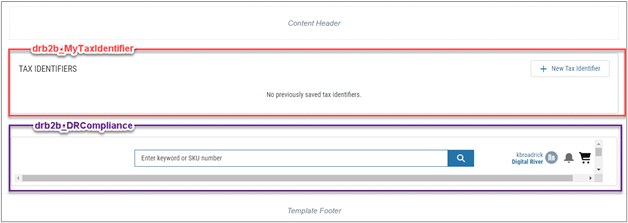
| drb2b_drCompliance | All Checkout Pages | Use this component to show the Digital River compliance links. You can configure this component in the Experience Builder. |
| drb2b_drTermsElement | Sub Flow / Screen: Digital River Checkout Summary subflow or Checkout Summary screen | Use the checkbox in this component for the active acceptance of terms and conditions by the user. You can configure this component in the flow. |
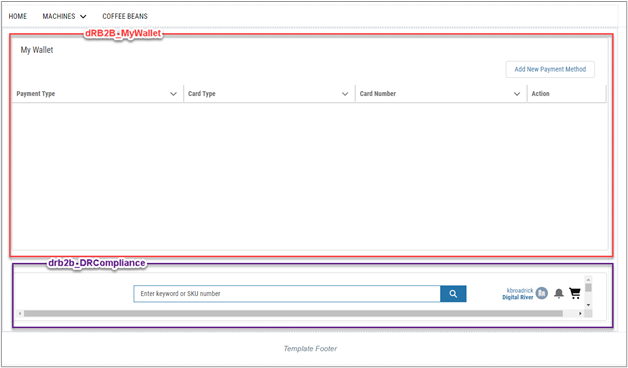
| drb2b_myWallet | My Wallet | Use this component to show and add new payment sources in the wallet. You can configure this component in the Experience Builder. |
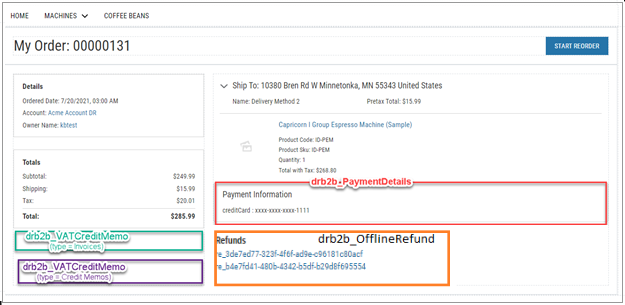
| drb2b_paymentDetails | Pages: Order Summary Detail, Order Confirmation Sub flow / Screen: Digital River Payments subflow or Place Order Confirmation screen | This component shows payment details. You can configure this component in the sub flow. |
| drb2b_vatCreditMemo | Order Summary Detail | Use this component to show invoices and credit memos to the user. It should appear on the Order Summary Detail page two times: one refers to the invoice and the other refers to the credit memo. You can configure this component in the Experience Builder. |
| drb2b_productDetail | Order Confirmation | Use this component to show the product details. You can configure this component in the Experience Builder. |
| drb2b_buyerInfo | Sub Flow / Screen: Digital River Shipping address subflow or Shipping Options screen | Use this component to display user information such as Name, Email, Bill to and Ship to, and so on.drb2b_Buyer Info is a wrapper component. Its constituent component is drb2bUsersTaxCertificates. You can configure this component in the flow. |
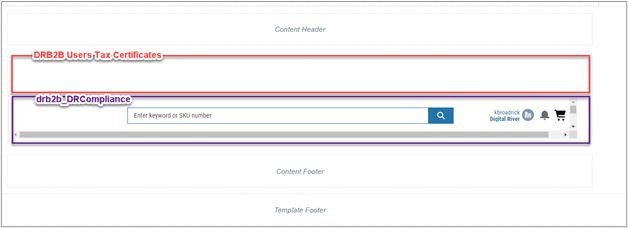
| drb2b_usersTaxCertificates | Page: My Tax Certificates | Use this component to upload tax certificates. drb2b_usersTaxCertificates is a wrapper component. Its constituent component is drb2b_addTaxCertificate. You can configure this component in the Experience Builder. |
| drb2b_orderSummary | Page: Order Confirmation Sub flow / Screen: Digital River Payment subflow or Payment Screen | Use this component to display Sub Total, Shipping, Tax, and Grand Total, and so on. drb2b_orderSummary is a wrapper component. Its constituent component is drb2b_checkoutSummary. You can configure this component in the Experience Builder or flow. |
| drb2b_checkoutSummary | Page: Checkout Sub flow / Screen: can optionally be added to any subflow or screen | Use this component to display Sub Total, Shipping, Tax, and Grand Total, IOR Tax Regulatory Fee, and so on. You can configure this component in the Experience Builder or flow. |
| drb2b_drUtil | Subflow / Screen: DR Delivery Method, DR Checkout Summary, and DR Payments subflows or Delivery Method, Checkout Summary, and Place Order Confirmation screens | This component tells the Order Summary to get taxes and the subtotal from the cart. You can configure this component in the flow. |
| drb2b_taxIdentifier | Sub Flow / Screen: Digital River Checkout Summary subflow or Checkout Summary screen | Use this component to add a tax identifier in the checkout flow. drb2b_taxIdentifier is a wrapper component. Its constituent component is drb2b_myTaxIdentifier. You can configure this component in the flow. You can configure this component in the flow. |
| drb2b_myTaxIdentifier | My Tax Identifier | Use this component for the Tax Identifier functionality. drb2b_myTaxIdentifier is a wrapper component. Its constituent component is drb2b_CountryPicklist. You can configure this component in the Experience Builder. |
| drb2b_payments | Sub Flow / Screen: Digital River Payments subflow or Payment screen | Use this component for payment sources (for example, Drop-in and Stored Payments). drb2b_payments is a wrapper component. Its constituent components are drb2b_dropin and drb2b_myWalletPayment. You can configure this component in the flow. |
| drb2b_placeOrder (optional) | Page: Checkout Sub flow / screen: Digital River Payment subflow or Place Order Confirmation Screen or the Checkout Page (template) | Optionally, use this component to add the Place Order button to the Checkout Page or on the Place Order Confirmation screen. Use this component in conjunction with the drb2b_orderSummary component for the Place Order button to appear. You can configure this component in the Experience Builder or in the flow.Alternatively, use this component on the Place Order Confirmation screen, also in conjunction with the drb2b_orderSummary component. |
| drb2b_hideCheckoutSummary | Sub flow - per business requirements | Use this component to hid the drb2b_checkoutSummary component.You can configure this component in the flow. |
| drb2b_delayedPaymentInstructions | Pages: Order Summary Detail, Order Confirmation | Use this component to display the Delayed Payment instructions for delayed payment methods such as Wire Transfer. You can configure this component in the flow. |
| drb2b_previousButton | Screens: Payment and Billing Address and Place Order Confirmation screens | Use this component in the synchronous checkout flow only. This component is used to add the previous button to pages screens where the Digital River provided flow disables the OOTB previous button. |
| drb2b_OfflineRefund | Order Summary Detail | Use this component to collect refund banking details for shoppers using offline payment methods such as wire transfer or konbini. |