> For the complete documentation index, see [llms.txt](https://docs.digitalriver.com/salesforce-lightning/llms.txt). Markdown versions of documentation pages are available by appending `.md` to page URLs; this page is available as [Markdown](https://docs.digitalriver.com/salesforce-lightning/salesforce-lightning-b2b-commerce-app-2.1/integrate-the-salesforce-lightning-app/step-17-integrate-the-digital-river-components-into-the-checkout-flow/integrate-the-digital-river-components-into-a-synchronous-checkout-flow/configure-screens-for-a-customized-synchronous-flow/configure-the-place-order-confirmation-screen.md).
# Configure the Place Order Confirmation screen
Learn how to configure the Place Order Confirmation screen to use in a synchronous checkout flow.
Use the following steps to configure the Place Order Confirmation screen in a synchronous checkout flow.
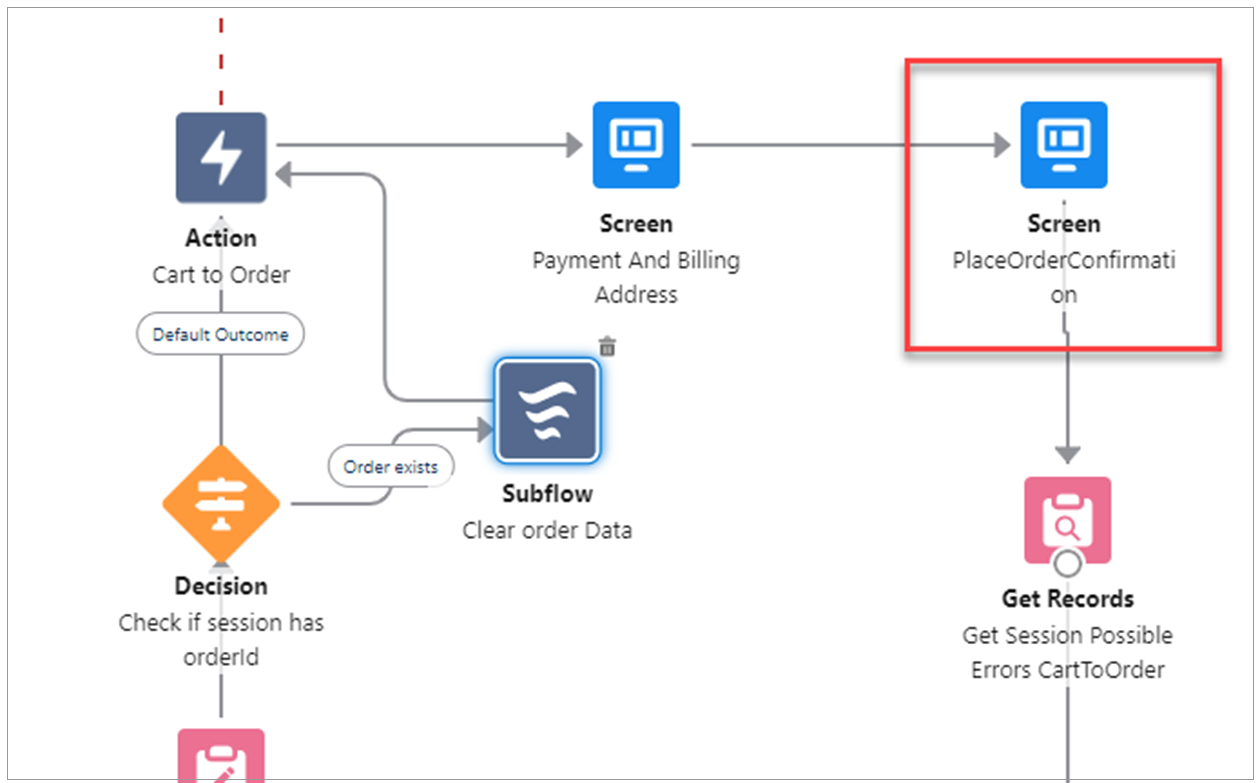
1. If you are configuring for the first time, drag a screen node into the flow and drop to the right of the Payment and Billing Address screen created in the previous topic.
2. Enter the following information:
* Label: PlaceOrderConfirmation
* API Name: PlaceOrderConfirmation
3. Click on custom screen PlaceOrderConfirmation.
4. Type `drb2b_paymentDetails` in the **Search Components** field and click **drb2b\_paymentDetails**.\

5. Drag **drb2b\_paymentDetails** to where you want it to appear on the Edit Screen.\

6. Enter the following values in the fields:
* **API Name**: Type `paymentDetails` or any other name with no restrictions.
* **Cart Id**: Type `{!cartId}`.\

7. Type `drb2b_orderSummary` in the **Search components** field and click **drb2b\_orderSummary**.\

8. Drag **drb2b\_orderSummary** to where you want it to appear on the Edit Screen.
9. Enter the following values in the fields. Be sure to click through all designer attributes to ensure that the default values are registered by Salesforce.
* **API Name**: Type `orderSummary` or any other name with no restrictions.
* **Auto Initialize:** Type `{!$GlobalConstant.True}`.
* **ByPass Validation**: Type `{!$GlobalConstant.False}` or `{!$GlobalConstant.True}` (default value).\
**Note**: Set the value to `{!$GlobalConstant.False}` whenever you want to use the `drb2b_drTermComponent` on the Place Order page. See [DR terms component](/salesforce-lightning/salesforce-lightning-b2b-commerce-app-2.1/extend-the-salesforce-lightning-app/customizing-the-lightning-web-components/components/dr-terms-component.md) for more information.
* **Place Order:** `{!$GlobalConstant.True}`.
* **Record Id**: Type `{!cartId}`.
* **Show All**: Type `{!$GlobalConstant.True}`.
* **Show Duty**: Type `{!$GlobalConstant.True}`.
* **Show Grand Total**: Type `{!$GlobalConstant.True}`.
* **Show IOR Tax**: Type `{!$GlobalConstant.True}`.
* **Show Place Order**: Type `{!$GlobalConstant.True}`.
* **Show Promotion:** Type `{!$GlobalConstant.True}`.
* **Show Regulatory Fee**: Type `{!$GlobalConstant.True}`.
* **Show Shipping**: Type `{!$GlobalConstant.True}`.
* **Show Subtotal**: Type `{!$GlobalConstant.True}`.
* **Show Tax**: Type `{!$GlobalConstant.True}`.\

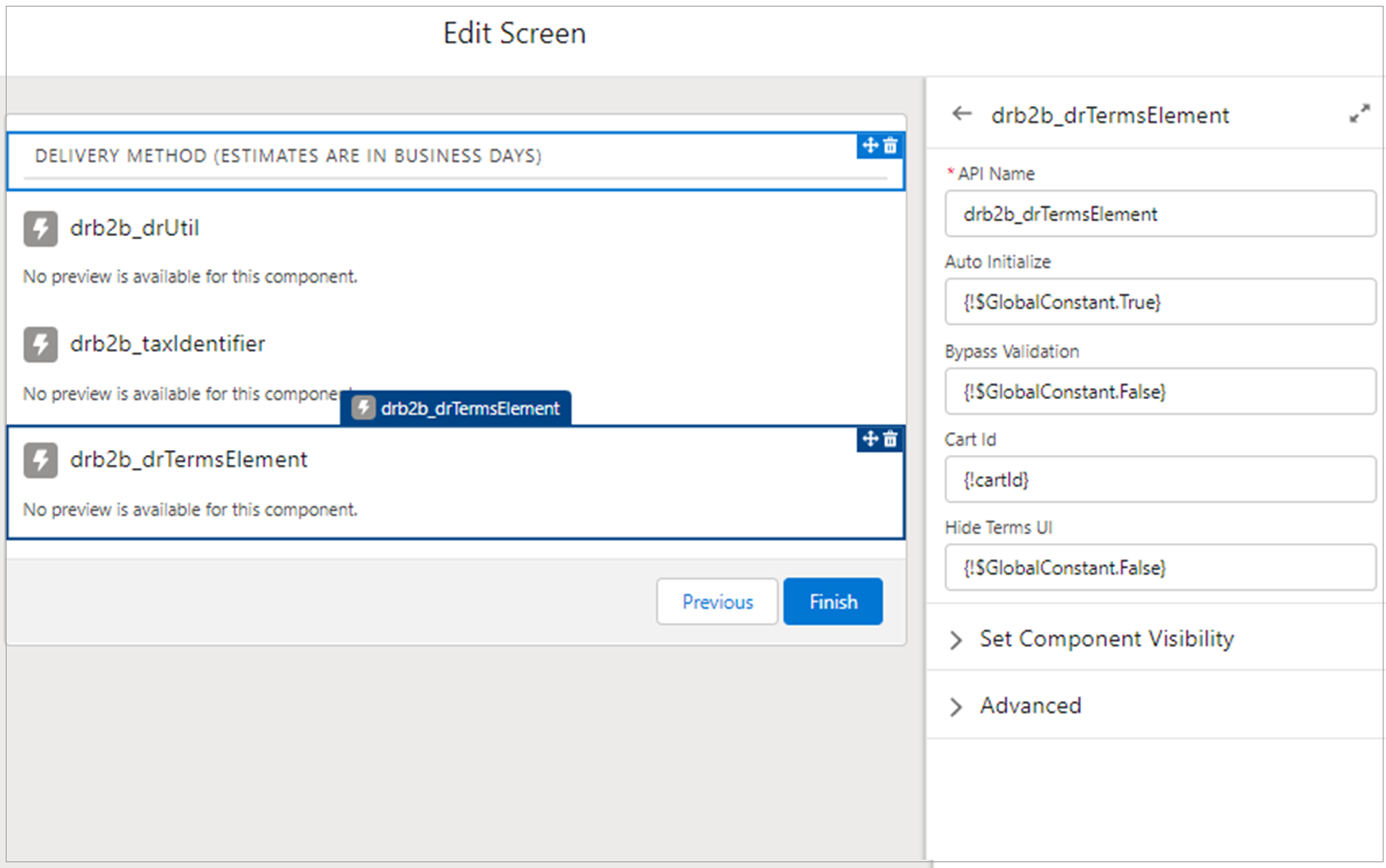
10. Add drb2b\_drTermsElement to screen and enter the following details. Be sure to click through all designer attributes to ensure that the default values are registered by Salesforce.
* API Name - drb2b\_drTermsElement or any name
* Auto Initialize - {!$GlobalConstant.True}
* Bypass Validation - {!$GlobalConstant.False}
* Cart Id - {!cartId}
* Hide Terms UI - {!$GlobalConstant.False}
11. Type `drb2b_drUtil` in the **Search components** field and click **drb2b\_drUtil** .\

12. Drag **drb2b\_drUtil** to where you want it to appear on the Edit Screen.
13. Type `drb2b_Util` or any other name with no restrictions in the **API Name** field.
14. Drag drb2b\_previousButton component to where you want it to appear on the screen
15. Enter drb2b\_previousButton or any name as the API Name.
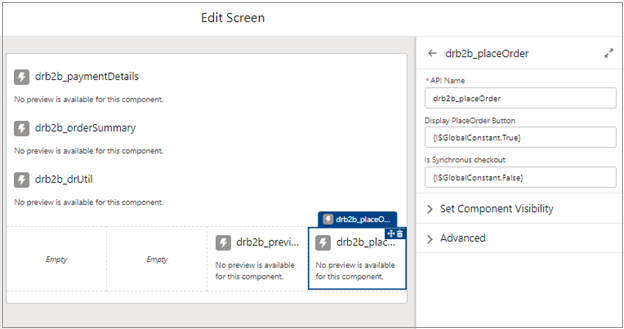
16. (Optional) Drag drb2b\_placeOrder component from the left panel to where you want it to appear on the screen. The connector supports several options for displaying a Place Order button. To add a standalone button in the checkout flow, use the drb2b\_placeOrder component.
17. Enter the following values in the fields. Be sure to click through all designer attributes to ensure that the default values are registered by Salesforce.
* API Name – drb2b\_placeOrder or Any Name
* Display Place Order button - {!$GlobalConstant.True}
* Is Synchronous checkout - {!$GlobalConstant.True}
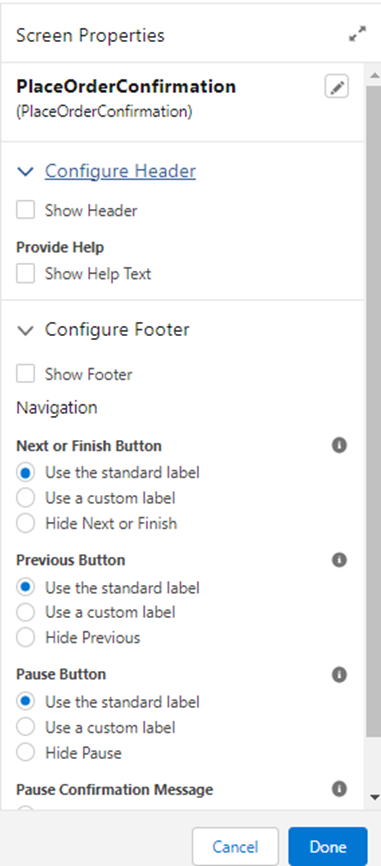
18. In the Screen Properties, expand the **Configure Footer** section.
19. Uncheck **Show Footer**. You can also hide the Next and Previous buttons on this screen.
20. Click **Done**.
21. If they are not already connected, connect the nodes as follows:
* Add a connector from the Payment And Billing Address (Screen) node to the PlaceOrderConfirmation (Screen) node.
* Add a connector from the PlaceOrderConfirmation (Screen) node to the Get Session Possible Errors CartToOrder (Get Records) node.\

22. Click the **Save As** and **Activate** buttons to save and activate the Synchronous Checkout flow.