Extend the Salesforce B2C LINK Cartridge
Extend the Salesforce B2C LINK Cartridge.
You can extend the functionality and features of the Salesforce B2C LINK Cartridge to meet your integration needs. Read the following section to learn how you can do this.
Custom code
SFRA templates
This section describes changes applied to the most recent templates provided with the cartridge. In addition, the section describes changes that may need to be made to templates to support specific client use cases and integration choices.
The following templates and their changes are described in this section:
Add payment
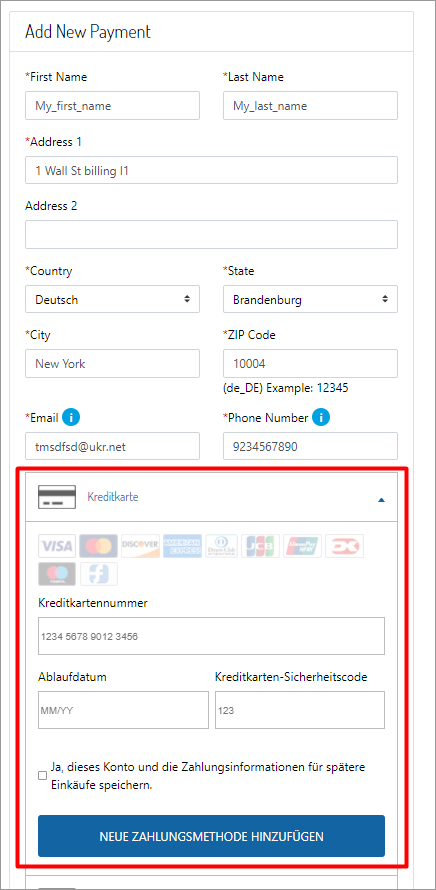
Use the add payment (addPayment.isml) template to add payment cards to the customer's account. You can use the template to add Drop-in payments functionality (DigitalRiver.js) and Drop-in payments in styles (DigitalRiver.css), as well as place Drop-in payments on an account page.
Template: cartridge/templates/default/account/payment/addPayment.isml

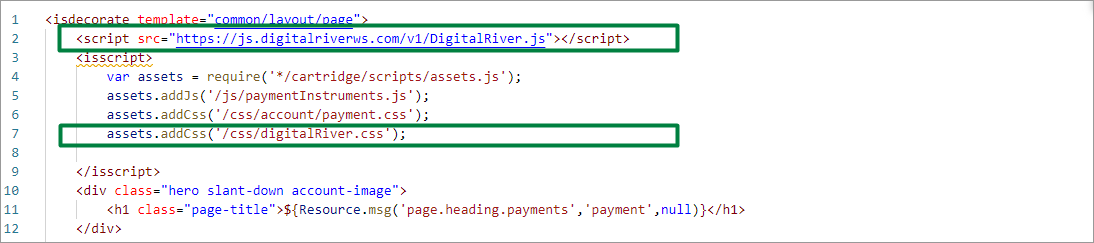
Added this Digital River script to provide Drop-in payments functionality on the page and apply related changes to Drop-in payments' styles.
Applied the changes to Drop-in payments' styles.

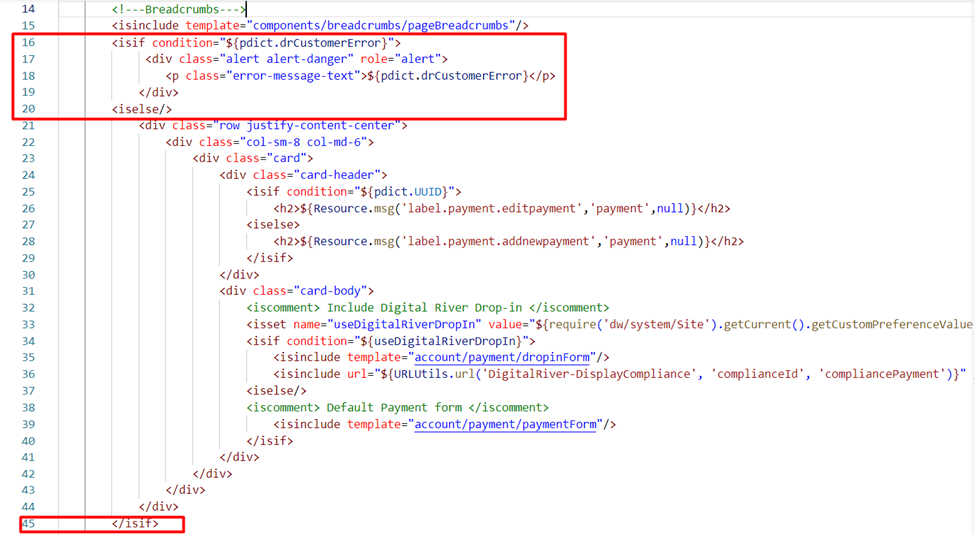
Added the following condition inside the card-body div.

Added the following code:

Dashboard profile cards
Use the dashboard profile cards (dashboardProfileCards.isml) template to add a Digital River Tax Certificates section to your Profile Dashboard page. The following image shows the out-of-the-box (OOTB) Dashboard Profile Dashboard page for Salesforce B2C Link Cartridge.

When you apply the dashboard profile cards template, it adds Tax Certificates.

Template path: cartridge/templates/default/account/dashboardProfileCards.isml
Added the Digital River tax certificate section on the page. In this example, tax certificates are displayed in My account only for the US locale. This section is available for US locale only.

Cart totals
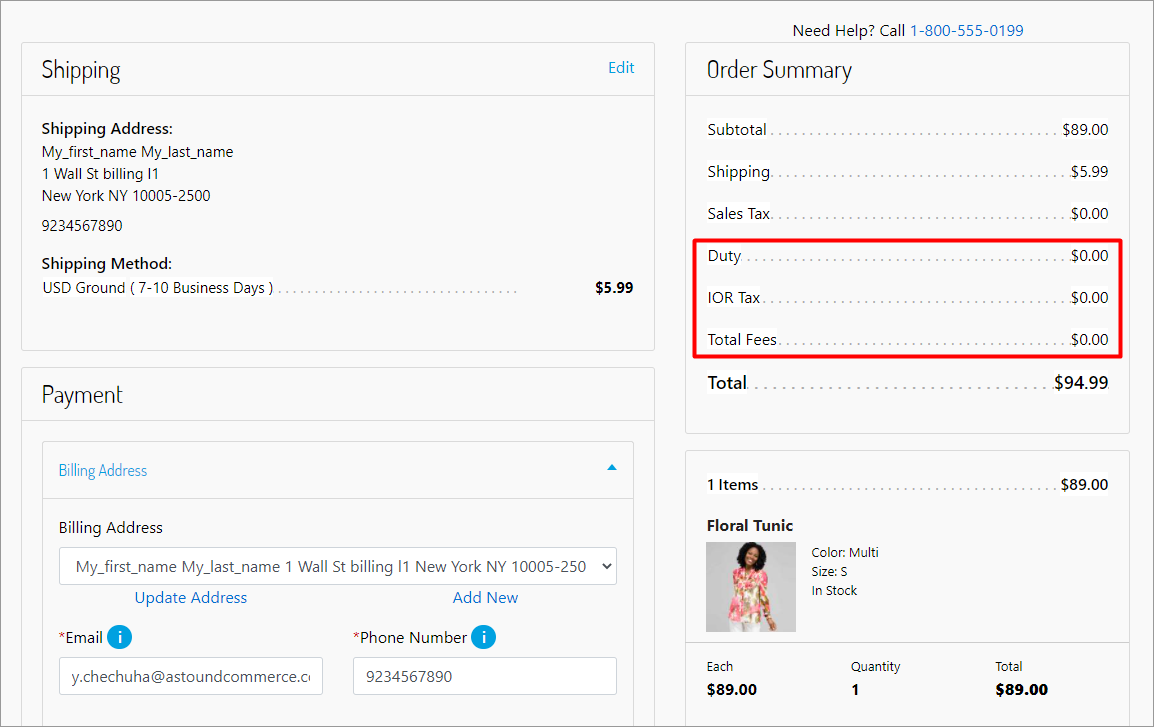
Use the cart totals (cartTotals.isml) template to include the Digital River Order Summary section on your Checkout page.

Template: cartridge/templates/default/cart/cartTotals.isml
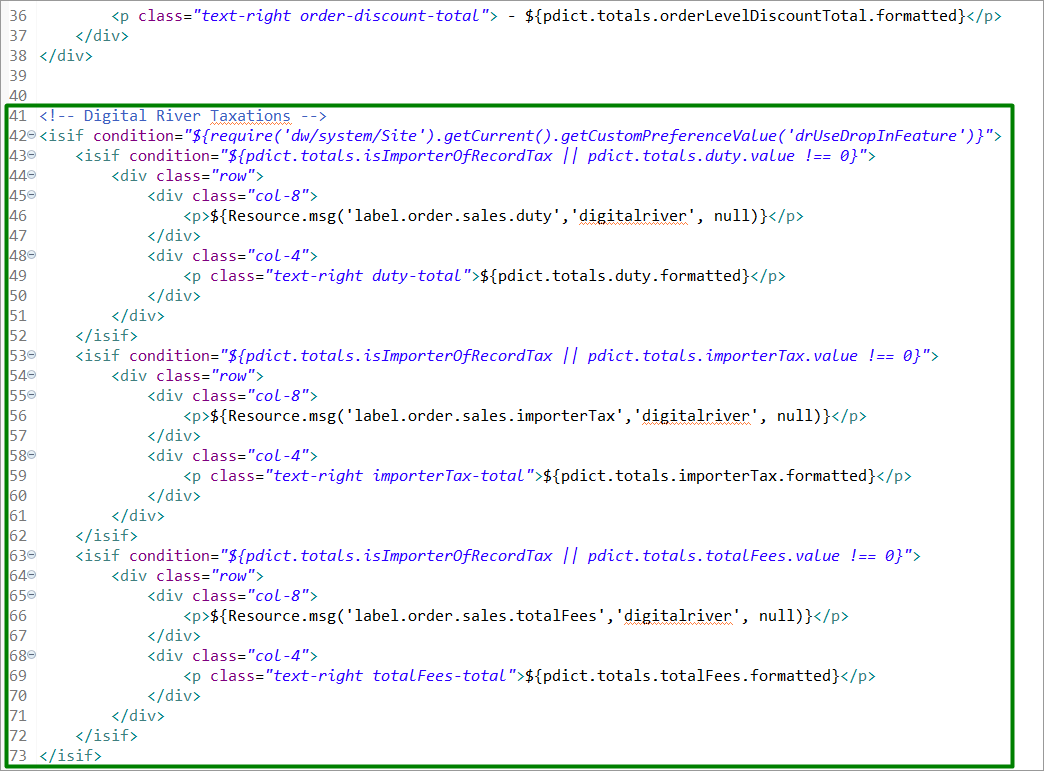
Included the Digital River Taxations section in the cart totals template after the discount section.

Payment options summary
As part of Billing, you can use the payment options summary template (paymentOptionsSummary.isml) to extend the payment condition with the DIGITAL_RIVER_DROPIN payment method on the Checkout page.

Template path: cartridge\templates\default\checkout\billing\paymentOptions\paymentOptionsSummary.isml
This change extended the payment condition with the ‘DIGITAL_RIVER_DROPIN’ payment method.

Billing
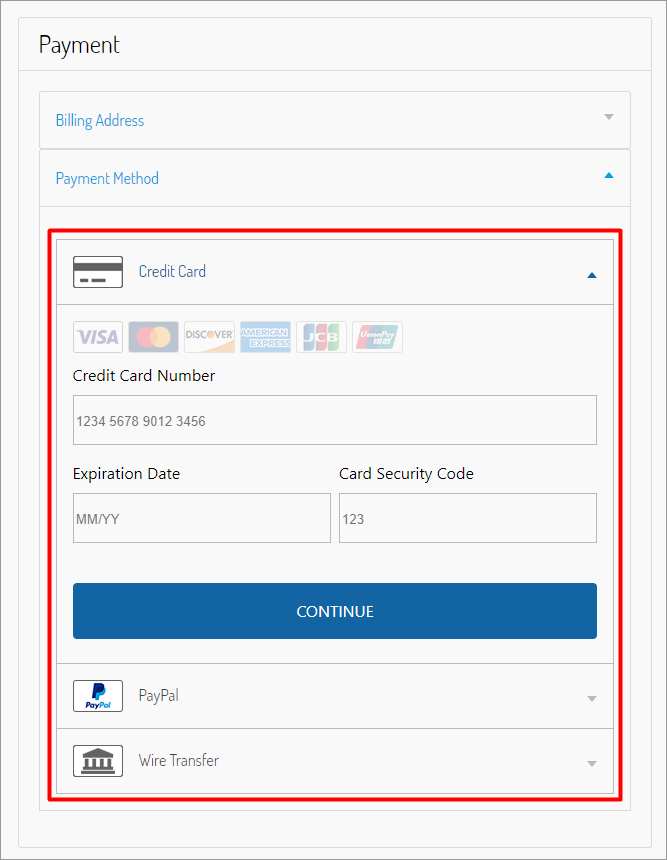
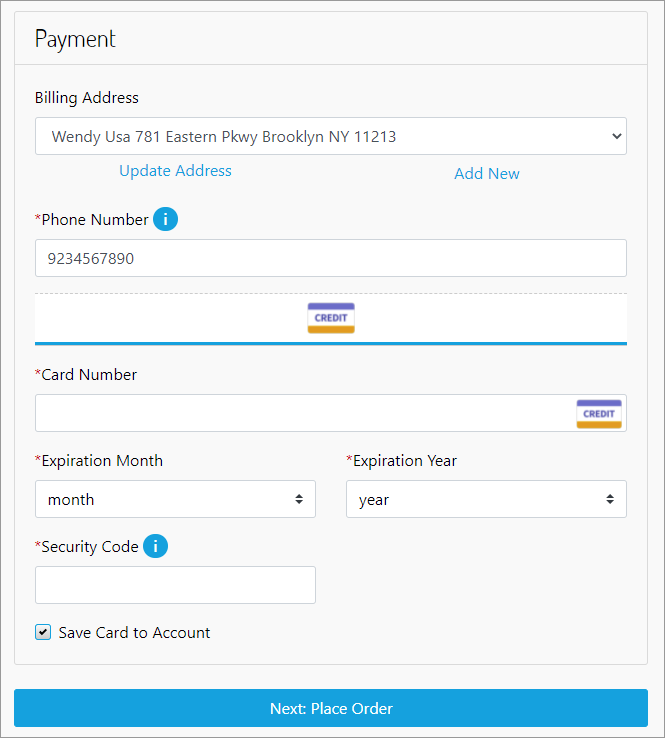
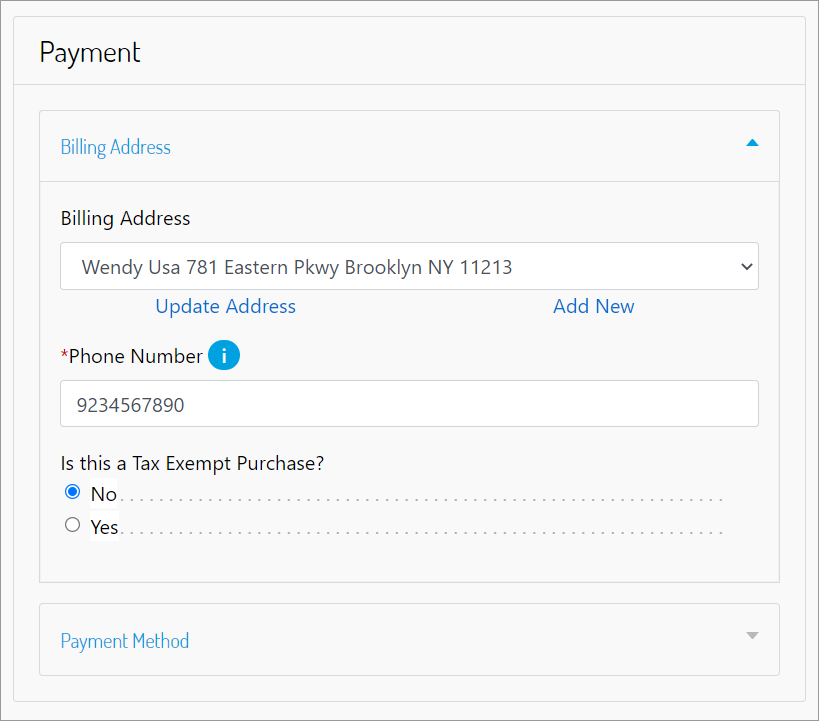
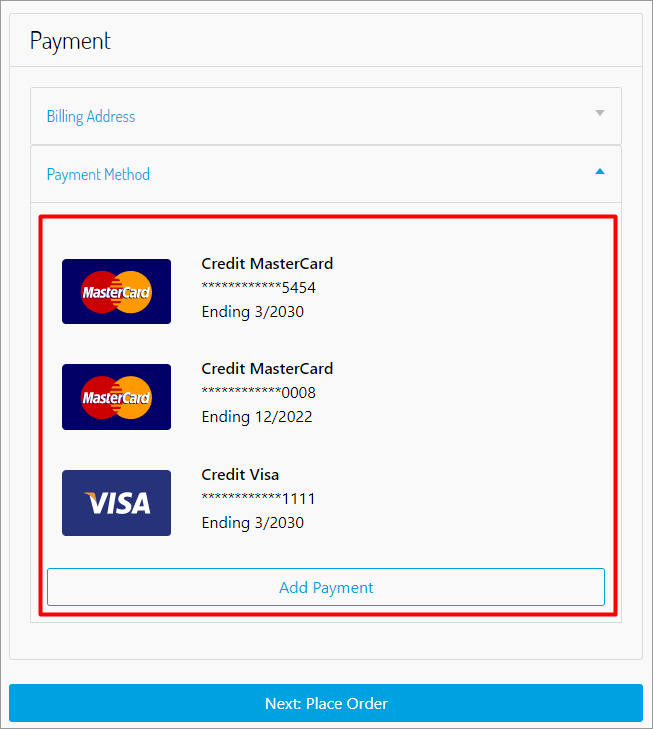
Use the billing (billing.isml) template to add accordion components to the Billing page. The following image shows the out-of-the-box (OOTB) Payment section of the Checkout page for Salesforce B2C Link Cartridge.

When you apply the dashboard profile cards template, it adds the ability to choose whether the purchase is tax-exempt and the payment method.

Template path: cartridge/templates/default/checkout/billing/billing.isml
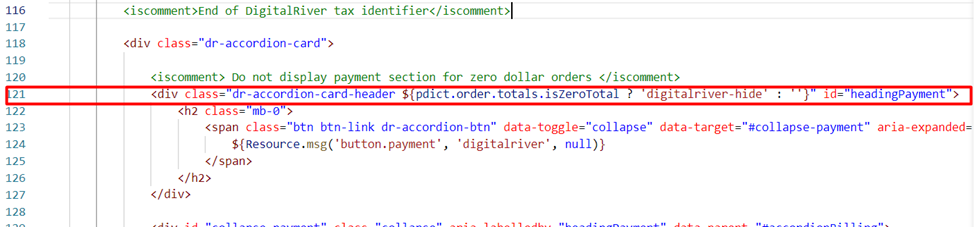
Added the accordion components to the billing page. In this example, accordion billing is used by extending the tag with id="accordionBilling".

Introduced a new templated purchase site within the parent template.
Extended the Digital River tax identifier section <div> tag with the dr-accordion-card class and the remove wrap expression in highlighted code.

Added accordion components to the billing page.

Modified tag with the following line:

Stored payment instruments
Use the stored payment instruments (storedPaymentInstruments.isml) template to display the stored payment instruments on the Billing page as a list of saved payment cards in the customer's account.
Template path: cartridge/templates/default/checkout/billing/storedPaymentInstruments.isml

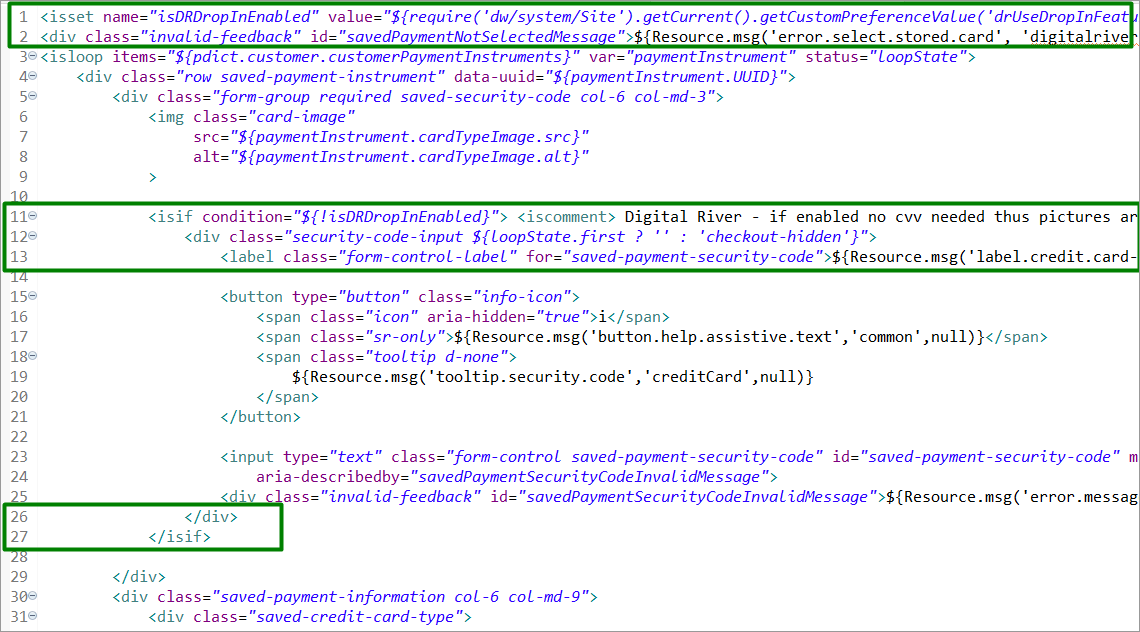
Added the following code at the beginning of the file:
Extended the card-image class condition as follows:
Wrapped the security-code-input div with the following condition:

Confirmation
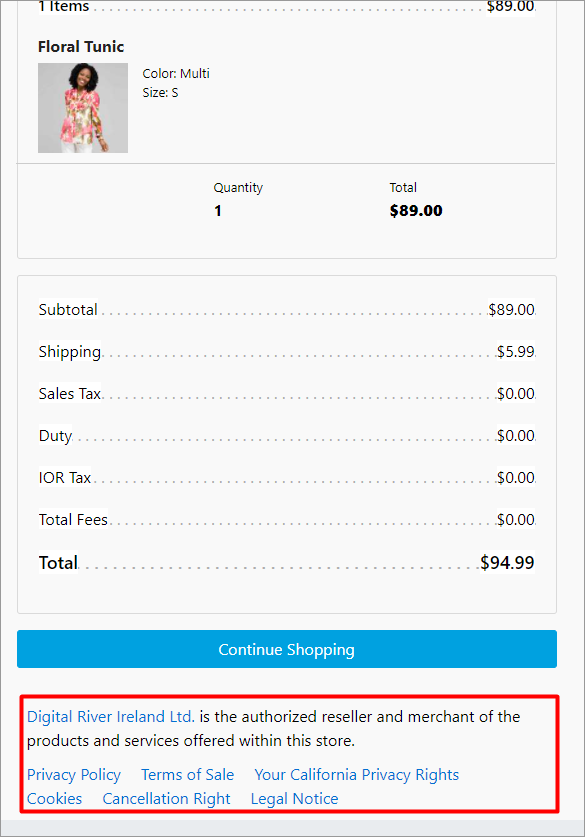
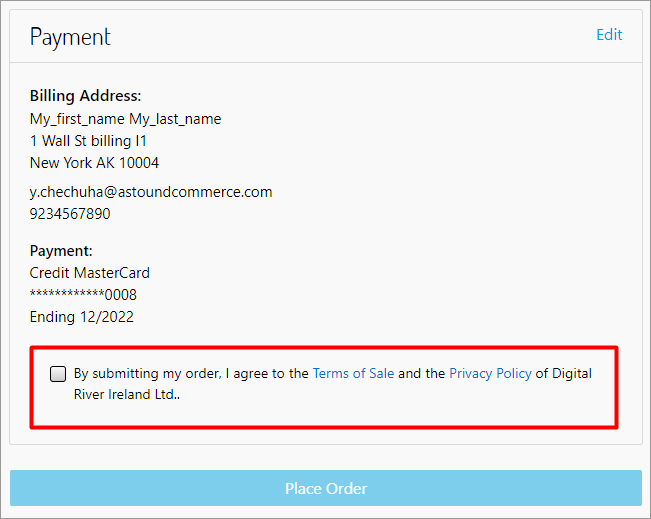
Use the standard confirmation (confirmation.isml) template for the B2C LINK Cartridge to include the Digital River compliance statement.
The customer should agree to the Terms of Sale and the Privacy Policy of Digital River and set the checkbox to complete an order. For more information on the Terms of Sale and the Privacy Policy of Digital River, visit the Digital River Legal Documentation website.
Compliance links are required to be displayed in several different places throughout the storefront. The out-of-the-box (OOTB) cartridge displays the compliance links in all required locations. Consult your Digital River Project Manager before making modifications to your storefront. For more detailed information on the purpose of the compliance links, visit Compliance on the Digital River Legal Documentation website.
Template path: cartridge/templates/default/checkout/confirmation/confirmation.isml

Added the DigitalRiver.js script to the page.
Added the Digital River compliance section to the page.


Added a Digital River styles file.

Added an includeof delayedPaymentInstructions (first highlighted section).
Added an include of delayedPaymentInstructions (second highlighted section).

Checkout
Use the checkout (checkout.isml) template to add Digital River styles, the Drop-in styles, and the check box to confirm agreement with the Terms of Sale and the Privacy Policy of Digital River to the Checkout page when the customer is ready to place an order. The customer should agree to the Terms of Sale and the Privacy Policy of Digital River and set the check box to complete the order.
Template: cartridge/templates/default/checkout/checkout.isml

Added the Digital River Drop-in styles.
Included the Digital River styles.

Added a spinner inside the placeOrderstage condition. When Shopper is in placeOrder stage, they will see a spinner running until the place order stage executes.

Added the Digital River confirm disclosure checkbox to the checkout page.
Modified the button to submit shipping.
Added a condition that will control the submit payment button display.
Added a reference to the drPlaceOrder isml template.
Added the Digital River compliance section to the checkout page.

Added a display for an error message.

Added the following code to display a customer related error:

Order total summary
Use the order total summary (orderTotalSummary.isml) template to add the Digital River Taxations section to your Checkout page.
Template path: cartridge/templates/default/checkout/orderTotalSummary.isml

Added the "Sales Tax" information text as conditional HTML content.

Added the Digital River Taxations section.

Added the Digital River gross site VAT info to the end of the file.

Payment
Use the Payment (payment.isml) template to add a payment section to your Checkout page.
Template path: cartridge/templates/default/checkout/payment.isml
Added the following code on lines 14-18, line 41:

Order Details
Use the OrderDetails (orderDetails.isml) template to display order details to the shopper after the transaction has been completed.
Template path: cartridges/int_digitalriver_sfra/cartridge/templates/default/account/orderDetails.isml
In the <isscript>section, added a reference to the drInvoiceCredit.js script.
Added remote include for Invoices and Credit memos and Offline Refund functionality.

Menu
Use the Menu (menu.isml) template to display the country/currency selector for the dynamic pricing feature.
Note: This template is not overridden by the cartridge OOTB. Use the following example to include the country/currency selector on the storefront. You are expected to add the selector to the desired location.
Template path: cartridge/templates/default/components/header/menu.isml
At the end of the <ul class="nav navbar-nav" role="menu">section, add a remote include for the country and currency selection menu.

Page Header
Use the Page Header (pageHeader.isml) template to display the country/currency selector for the dynamic pricing feature.
Template path: cartridge/templates/default/components/header/pageHeader.isml
At the end of the <div class="hidden-md-down"> section, add a remote include for the country and currency selection menu.

Cart
Override the (cart.isml) template to conditionally display the shipping method selector on the cart page.
Template path:cartridge/templates/default/cart/cart.isml
Locate the <isinclude template="cart/cartShippingMethodSelection"/> and replace it with the following:

SFRA client scripts
This section describes the changes applied to the most recent client scripts provided with the cartridge. In addition, the section describes changes that you may need to make to the client scripts to support your specific use cases and integration choices.
The following scripts and their changes are described in this section:
Checkout script
The checkout (checkout.js) script is loaded on the Checkout page and includes the page frontend event handler. The script loads the base event handler (checkout.js) and additionally loads the Digital River US Tax Certificate handler (drCertificate.js) on the shipping stage of the checkout and the Global Tax ID handler (drTaxId.js) on the billing stage of checkout.
Script path: cartridge/client/default/js/checkout.js
Included the additional scripts on the checkout page.

Script path: cartridge/client/default/js/checkout/checkout.js
The checkout script (checkout.js) is loaded on the Checkout page and includes a basic page frontend event handler. The changes introduced by this script extend the base functionality to correctly handle Digital River extensions.
Added the following line at the beginning of the file:

Added the retrieve stored card global variable at the beginning of the checkout function.

Added the following code to the shipping submit success handler.

Added the following code to the Retrieve stored card section.
Extended the code as follows.
Added the following code to the Retrieve stored card section.

Extended the billing code as follows:

Extended the code as follows:

Wrapped the contents of the placeOrder stage function.

Added the following code to the shipping submit success handler.

Added to ensure that the proper redirection takes place after returning from payment.

Billing script
Use the billing.js script to extend the checkout script functionality.
Script path: cartridge/client/default/js/checkout/billing.js
Modified the following and also modified the row (see highlighted area).

The default storefront on the Checkout page uses the payment instruments (paymentInstruments.js) script. This JavaScript includes the frontend handler for payment cards. This frontend JavaScript must be completed and compiled before being used on the site. When this JavaScript is loaded on the Checkout page, the script loads the base handler (paymentInstruments.js) and additionally loads the handler for the Digital River payment cards (paymentInstrumentsDropIn.js).
Used proccessInclude to extend the default paymentInstruments.js script. Once compiled, the paymentInstrumentsDropIn.js extends the Checkout page to display the available payment methods. The script contains functions to launch Drop-in, handle errors, and handle submitted payments.
Script path: cartridge/client/default/js/checkout/billing.js

Edit the updatePaymentInformation as follows:

Modify the selectBillingAddress function. An example is shown in line 267 of the following screenshot:

Add the clearCreditCardForm function content and include the following condition:

Add the handleCreditCardNumber function and include the following condition:

Add the following condition inside the selectSavedPaymentInstrument function.

Add the following code to the addNewPaymentInstrument function:
Add the following code to the canceNewPayment function:

Summary script
Use the summary.js script to extend the checkout script functionality that provides order summary information. For more information on this script and how it is used with Customer Credit, refer to Use Customer Credit and Customize the Customer Credit Cartridge.
Script path: cartridge/client/default/js/checkout/summary.js
Add summary info rows (highlighted section).

Add rows (highlighted section).

Added the following code:

Shipping script
Use the shipping.js script to extend the checkout functionality.
Script path: cartridge/client/default/js/checkout/shipping.js
Added the required references.

Modified the updateMultiShipInformation function with the following condition on line 20:

The shipping.js script has been updated so that the Ajax call to load shipping methods is not triggered if a shopper successfully submits a payment.
Wrap the Ajax call in an if statement as follows:

The updateShippingList function has been extended to handle trigger updates to the shipping methods list if the Zip Code is changed in the shipping form. The handler code has been moved to a separate function that triggers both the stateCode and shippingZipCode fields in the shipping form.

SFRA model changes
This section describes changes applied to the most recent models provided with the cartridge. In addition, the section describes changes you may need to make the models support your specific use cases and integration choices. The following scripts were updated and their changes are described in this section:
Shipping
The Shipping (shipping.js) model was updated to add support for the Digital River Shipping Options feature.
Model path: cartridge/models/shipping.js
The following functions were extended in this model:
getSelectedShippingMethodShippingModel
The getSelectedShippingMethod function was extended as follows:
The ShippingModel function was extended as follows:

SFRA script changes
This section describes the changes applied to the most recent cartridge scripts. In addition, you may need to make some of these changes to the scripts to support your specific use cases and integration choices. The following scripts and their changes are described in this section:
Shipping Helpers
The Shipping Helpers (shippingHelpers.js) script has been updated to add support for the Digital River shipping options feature.
Script path: cartridge/scripts/checkout/shippingHelpers.js
The following functions were extended in this script:
getFirstApplicableShippingMethod
This method was changed as follows:
ensureShipmentHas method
This method was changed as follows:
getApplicableShipping method
This method was changed as follows:
selectShippingMethod
This method was changed as follows:
Calculate hook
The Calculate hook (calculate.js) script was updated to add support for the Dynamic Shipping and Digital River taxation features.
Script path: cartridge/scripts/hooks/cart/calculate.js
The following functions were extended:
calculateShipping
This function has changed as follows:
calculateTax
This function has changed as follows:
SFRA JSON files changes
This section describes the changes made to the most recent cartridge JSON. The section also describes changes that you may need to make to the scripts to support your specific use cases and integration choices.
The following scripts and their changes are described in this section:
Hooks
The Hooks JSON configuration (hooks.json) was updated with the addition of the following hooks:
dw.order.calculateTax
dw.order.calculateShipping
app.payment.processor.digital_river
app.payment.processor.digital_river_dropin
app.payment.form.processor.digital_river
app.payment.processor.digital_river_paypal
app.payment.form.processor.digital_river_paypal
app.payment.form.processor.digital_river_dropin
app.payment.form.processor.digital_river_zero_payment
app.payment.processor.digital_river_zero_payment
dw.system.request.onRequest
JSON location: cartridges/int_digitalriver_sfra/hooks.json
The JSON configuration is:

Countries
You need to update the Countries JSON configuration (countries.json) by adding alternativeCurrencyCodes to each country defined in the JSON.
JSON location: cartridge/config/countries.json
The alternative countries array should contain all currency codes that will be used with the Dynamic Pricing feature.
For example:
Drop-in data handlers
Use the cartridge's Digital River API endpoints and Digital River Drop-in payments external script to handle client payments. The DigitalRiver.http.service shares one profile and one credential.
dropinHelper.js
Use the dropinHelper.js to configure specific payment data used by Drop-in payments.
Path: int_digitalriver\cartridge\scripts\digitalRiver\dropinHelper.js
You can use use the following elements in dropinHelper.js to configure the payment data.
switch(source.type)—saves payment data (for example,creditCard) from Drop-in payments to the customer's wallet where it can be used the next time the customer goes to the Checkout page.switch(paymentType)—returns object with specific fields from the SFCCpaymentInstrumentobject.switch(source.type)—returns object with specific fields from the Drop-In response object.
payment.js
Use the payments.js script to add specific attributes to the core payment object. Templates and client-side scripts (JSON) use this object.
Path: int_digitalriver_sfra\cartridge\models\payment.js
extendDigitalRiverInfo—extract data (such aspaymentType,maskedCreditCardNumber, and so on) and makes it available in templates or the client-side as JSON.
Webhook handler
The webhook handler consists of a controller, a helper script, and a handler script.
Endpoint URL structure:
{sandbox}/{site}/{locale}/HooksObserver-DebugExample of endpoint URL:
https://zzrk-032.sandbox.us01.dx.commercecloud.salesforce.com/on/demandware.store/Sites-DR-SFRA-Net-Site/en_US/HooksObserver-Debug
Controller
Use the following steps to use the controller portion of the handler:
File: cartridges/int_digitalriver/cartridge/controllers/HooksObserver.js
Step 1: Catch request data
Step 2: Use helper script to log request data
Step 3: Check the signature and handle hook
Step 4: Send an email
Individual handlers, not the controller, can optionally send an email.
Step 5: Return the response
Helper script
Use the helper script part of the controller to:
Send an email (
sendTechnicalMail(title, content)).Set the email address in Business Manager site preferences

File: cartridges/int_digitalriver/cartridge/scripts/digitalRiver/hooksObserver/drHooksHelper.js
Handler script
Use the handler script where custom handling is needed. The handler script contains simple examples of handlers, which can be modified and extended for custom handling. Examples are provided for the following event types:
refund.pendingrefund.complete
If the hookType (webhook's event type) is set in the request body (see Step 1: Catch request data in Controller), the handler script handles events by the event type and returns a 200 OK response.

If a handler with a selected hookType does not exist, or if the hookType is not set, the “default” handler is used and processes all other types and returns 200 response code.
If an error occurs, the handler returns a 500 response code.
To add a handler for a specific event type, create a function with a data attribute that returns a response code (for example, 200) and add a function name to the module.exports object.

File: cartridges/int_digitalriver/cartridge/scripts/digitalRiver/hooksObserver/drHooksHandler.js
Creating webhooks
To receive a notification when an event occurs (for example, when a refund occurs), create a webhook for that event in the Digital River Dashboard.
Sign in to the Digital River Dashboard.
Click Webhooks.
Create one webhook per site and configure each webhook to send one or more events using your production or test environment.
Last updated