> For the complete documentation index, see [llms.txt](https://docs.digitalriver.com/salesforce-lightning/llms.txt). Markdown versions of documentation pages are available by appending `.md` to page URLs; this page is available as [Markdown](https://docs.digitalriver.com/salesforce-lightning/salesforce-lightning-b2b-commerce-app-2.1/integrate-the-salesforce-lightning-app/step-5-add-custom-fields-to-the-page-layouts.md).

# Step 5: Add custom fields to the page layouts

Learn how to configure the page layouts.

{% hint style="info" %}
See the [Appendix ](/salesforce-lightning/salesforce-lightning-b2b-commerce-app-2.1/appendix.md)for a list of [custom fields and objects](/salesforce-lightning/salesforce-lightning-b2b-commerce-app-2.1/appendix/custom-fields-and-objects.md) that you can add to the page layouts.
{% endhint %}

To configure the page layout for the DCM Application Log:

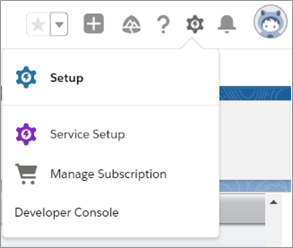
1. Click **Setup** ![](https://content.gitbook.com/content/3R66sN5xrbmDAJUBEoHo/blobs/lEcQsi8hQMvR90fr2QHZ/Setup.png) and select **Setup** from the dropdown list.\
   ![](https://content.gitbook.com/content/3R66sN5xrbmDAJUBEoHo/blobs/4CQfqtG5XGymczxMLDCB/Page%20layout%201.png)
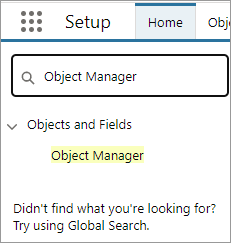
2. Type `Object Manager` in the **Quick Find** field and click **Object Manager**.\
   ![](https://content.gitbook.com/content/3R66sN5xrbmDAJUBEoHo/blobs/6GxZ5Gsgh20wBR1YAZ5T/Quick%20Find%20-%20Object%20Manager.png)
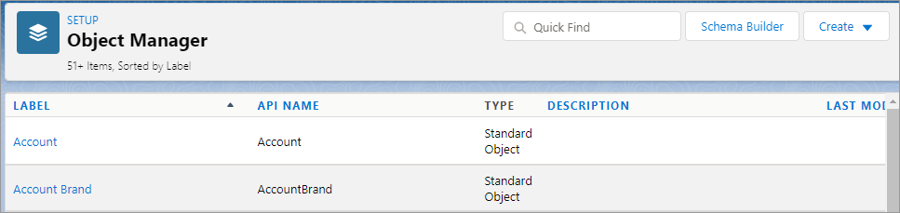
3. Type \*\*\*\* `DCM Application Log` in the **Quick Find** field and then click the **DCM Application Log** link under **LABEL**.\
   ![](https://content.gitbook.com/content/3R66sN5xrbmDAJUBEoHo/blobs/Oj70OKz1ytsLIm51jPbn/Object%20Manager.png)
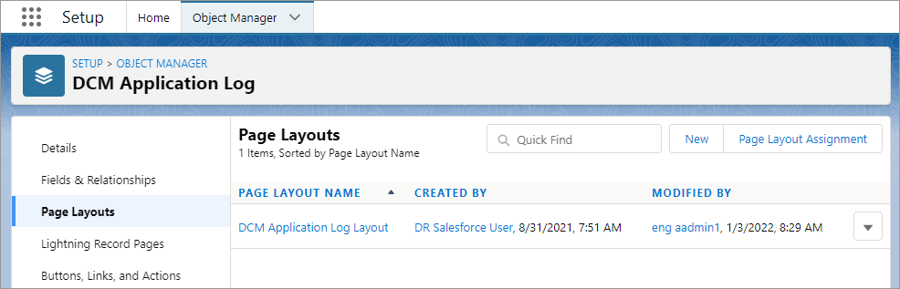
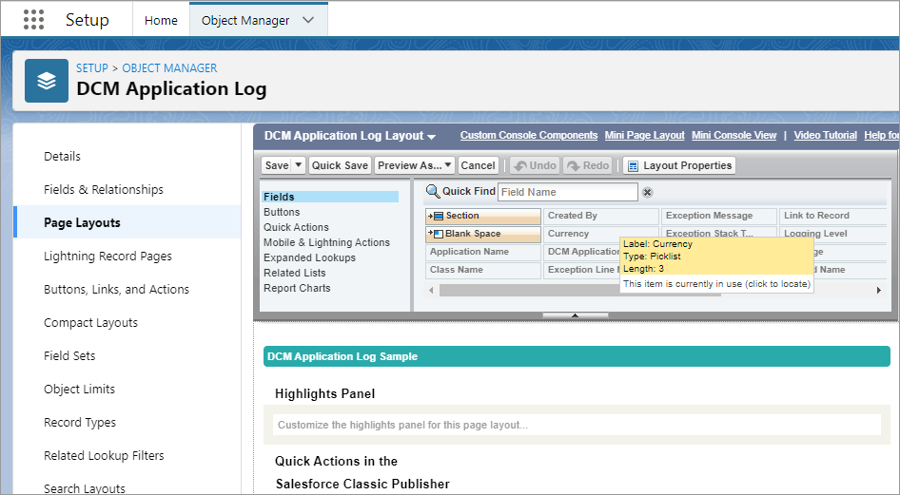
4. Click **Page Layouts**.\
   ![](https://content.gitbook.com/content/3R66sN5xrbmDAJUBEoHo/blobs/UNQv03WmYqeXelFBrWGH/Page%20Layouts.png)
5. Click **DCM Application Log Layout**.\
   ![](https://content.gitbook.com/content/3R66sN5xrbmDAJUBEoHo/blobs/Ceg3HwqKT2OvFXJxtVbj/DCM%20Application%20Log.png)
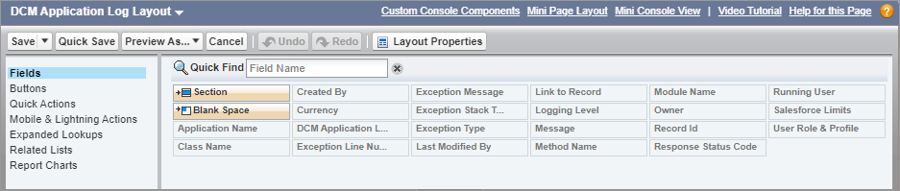
6. Click the **Fields** tab in the **DCM Application Log Layout**.\
   ![](https://content.gitbook.com/content/3R66sN5xrbmDAJUBEoHo/blobs/I38dyOKLUNKpkeKgUdze/DCM%20Application%20Log%20Layout%20-%20Fields%20tab.png)
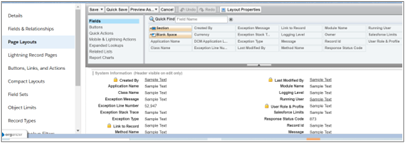
7. Create a section for Digital River fields.
   * Drag the custom field you want to appear in the DCM Application Log Layout from the **Fields** list to the **DCM Application Log Detail** and arrange them in the order you want them to appear.
   * Repeat this step for each field you want to appear in the DCM Application Log Layout.\
     ![](https://content.gitbook.com/content/3R66sN5xrbmDAJUBEoHo/blobs/NgL02HOg7fJhB4S8Wzgj/DCM%20page%20layout.png)
8. Click **Save**.
9. Repeat the above steps to configure the page layout for other objects using the information provided in [Custom objects and fields](/salesforce-lightning/salesforce-lightning-b2b-commerce-app-2.1/appendix/custom-fields-and-objects.md).