> For the complete documentation index, see [llms.txt](https://docs.digitalriver.com/salesforce-lightning/llms.txt). Markdown versions of documentation pages are available by appending `.md` to page URLs; this page is available as [Markdown](https://docs.digitalriver.com/salesforce-lightning/salesforce-lightning-b2b-commerce-app-2.1/user-guide/offline-refunds.md).
# Offline refunds
Learn more about offline refunds and offline refund links.
Use the Salesforce Lightning B2B Commerce app to make offline refund links available for shoppers submitting orders via an offline payment method such as a wire transfer or Konbini. When the shopper clicks a refund link, a payment information form appears on the same page. They use this form to fill in all relevant bank information needed to complete the refund.
## Prerequisites
To use this feature, orders should meet the following prerequisites:
* Orders should use an offline payment option such as WireTransfer or Konbini. An order purchased with a credit card will not display offline refund links or provide a banking information form.
* Orders must be fulfilled.
* Refunds should already be created for that order using the Digital River Dashboard or another tool.
## Completing an offline refund
Complete the following steps to complete an offline refund:
1. After logging into the storefront, click on the user name to navigate to the main drop-down list.
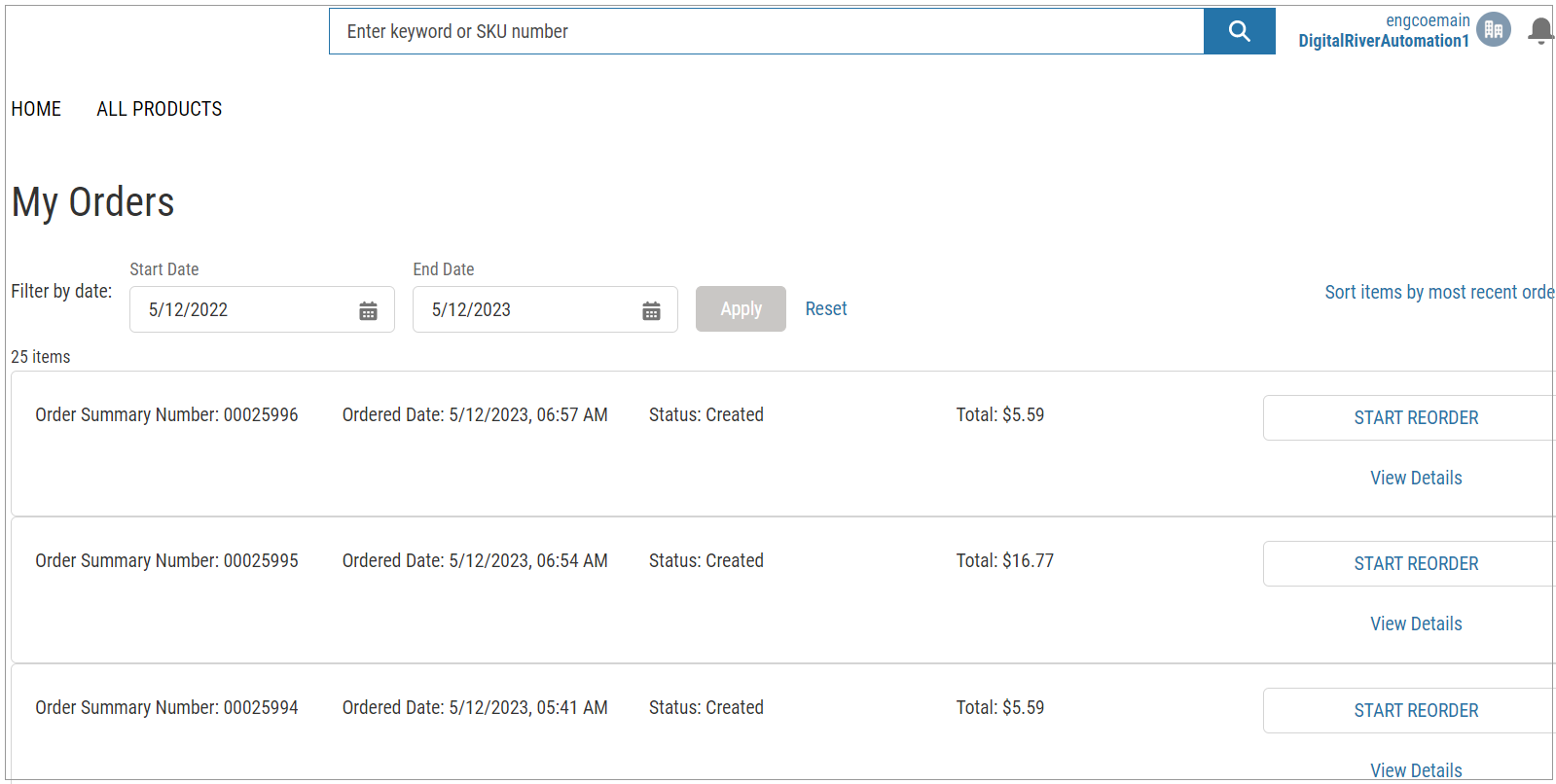
2. Click **Orders.** The My Orders page appears.
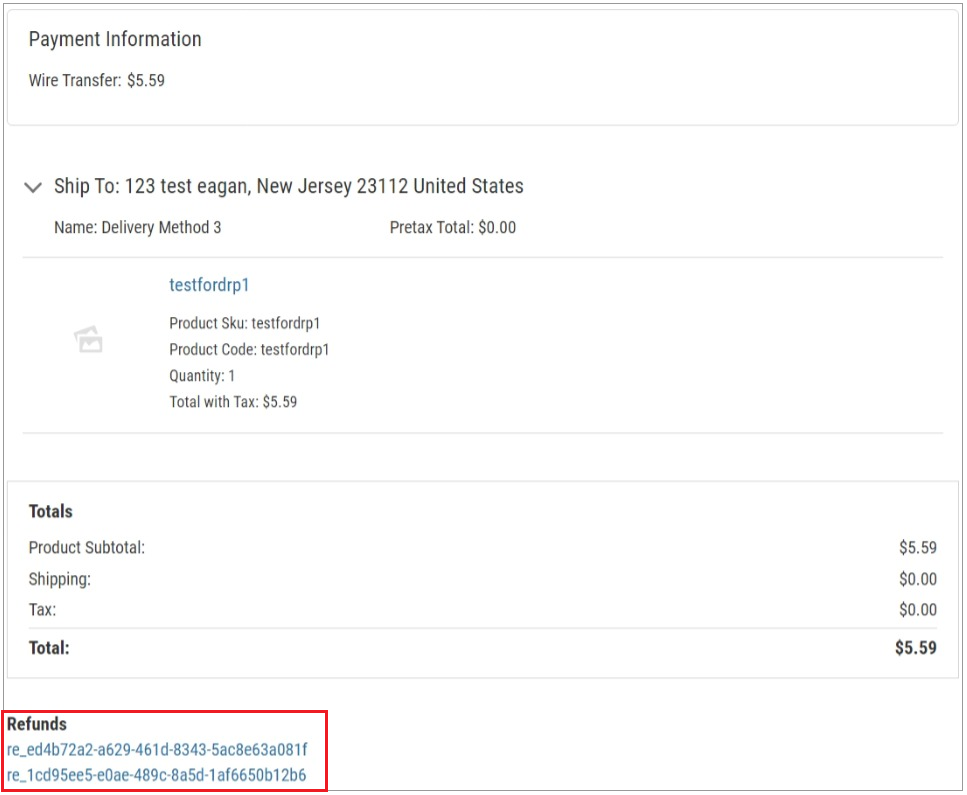
3. Click **View Details** in the order row to display the order details page containing one or more refund links in the Refunds section of the My Order page. The shopper may be required to enter banking details more than once for each separate link.
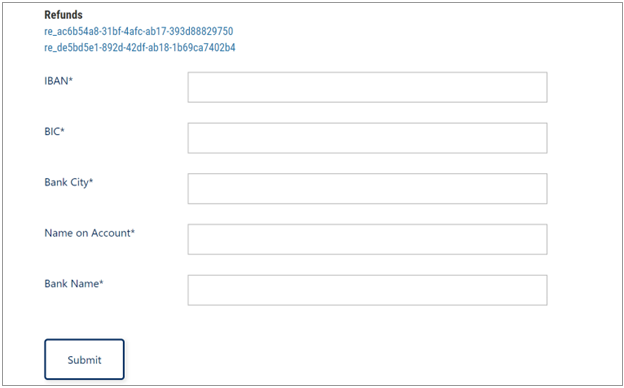
4. Click the first **Refunds** link in the list. The refund banking information form appears under the refund links.
The following banking information is requested:
* IBAN: Specifies the International Bank Account Number used for identifying the bank account used in the offline refund. Use this number for processing cross-border transactions to reduce transcription errors. This number identifies an individual account and the country of business.
* BIC: Specifies the code identifying the specific financial institution in an international transaction.
* Bank City: Specifies the city's name where this bank is located.
* Name on account: Specifies the name of the account holder.
* Bank Name: Specifies the actual name of the bank from which the shopper will obtain the refund.
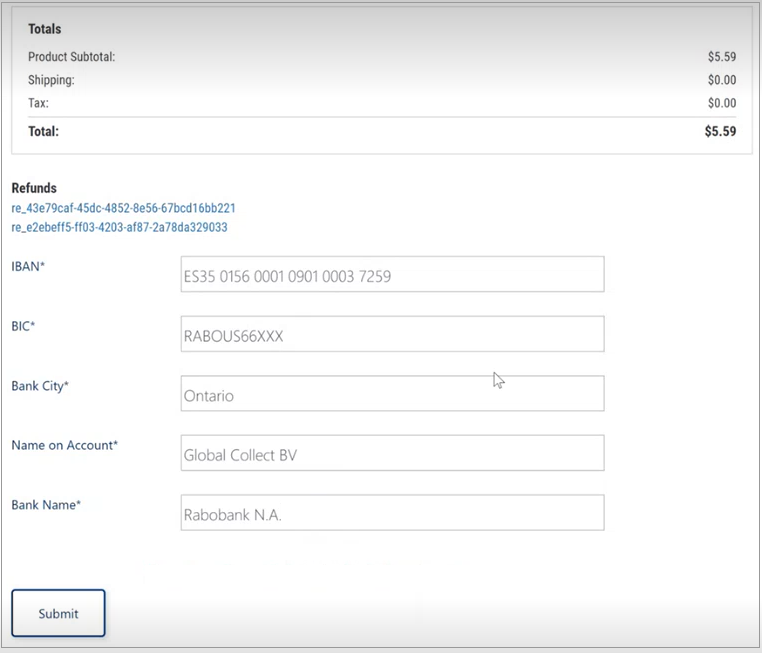
5. Complete the form. For example:
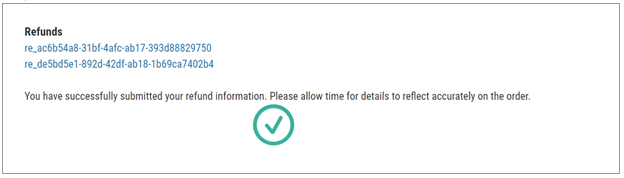
6. Click **Submit.** Allow some time for the refund to be processed. The shopper sees a green success message if the refund is processed successfully.\
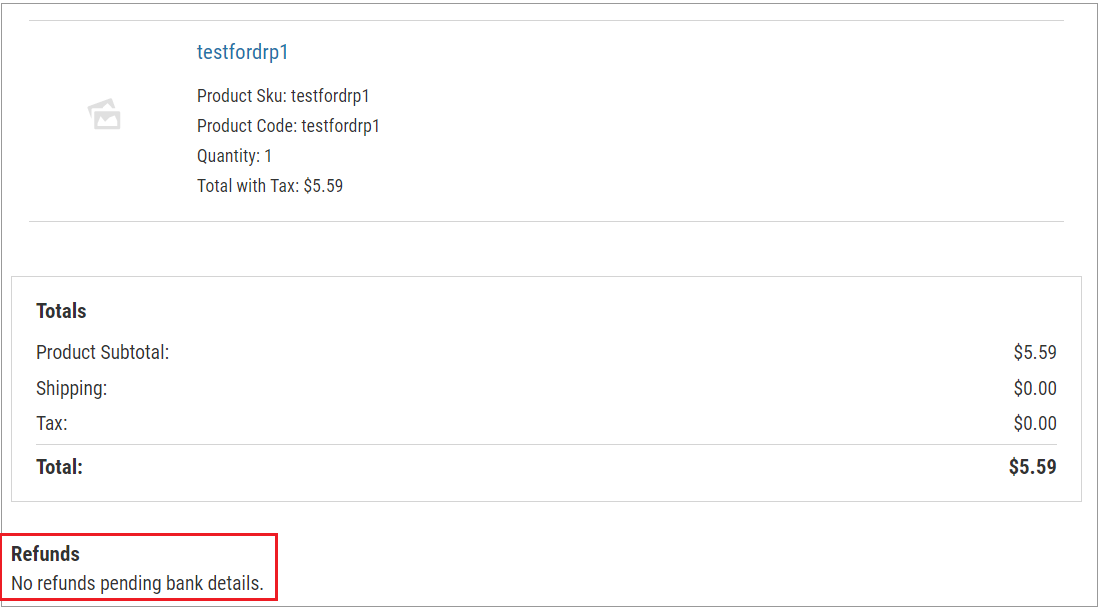
7. If there are additional pending refunds, return to the My Order page and repeat these steps. Once links have been processed with banking details, they are no longer available for shoppers. For example: