> For the complete documentation index, see [llms.txt](https://docs.digitalriver.com/salesforce-lightning/llms.txt). Markdown versions of documentation pages are available by appending `.md` to page URLs; this page is available as [Markdown](https://docs.digitalriver.com/salesforce-lightning/salesforce-lightning-b2b-commerce-app-2.1/user-guide/checkout-and-order-creation.md).
# Checkout and order creation
Learn more about checkout and order creation.
## Using the LWR Checkout flow REVIEW WHOLE SECTION
This section describes how to complete a checkout using the LWR Checkout flow as provided by Digital River. Actual steps may vary depending on your implementation.
1. Enter the keyword or SKU number in the search field, or select the products to add to the cart.
2. Select the product and click **Add to Cart.**
3. Click **Continue Shopping** to add more items, or **View Cart** to proceed to checkout.
4. Click **Proceed to Checkout** to pay for the items in your cart. The Contact Information section will be displayed.\
**Note**: This screen differs slightly for guest users and authenticated users.
5. Fill in the necessary details on and click **Proceed**. The Delivery Options section will appear.
6. Select the Delivery Method and click **Next**. The payment section appears.\
7. Select **New Payment method** or use the existing payment method (via the Stored Payment tab) and click **Continue**.
8. If you would like to save your payment for future use, select the **Yes, please save this account and payment information for future purchases** checkbox.
Once you made the payment, payment details will appear.
9. Click **Proceed** to agree to the Terms and Conditions. Once agreed, the Place Order button appears.
10. Click **Place Order** to complete the checkout and receive your order confirmation..
## Using the Aura Checkout flow
This section outlines how to use the out-of-the-box Checkout flow in the Salesforce Lightning app. Steps may vary based on your specific implementation.
To complete the checkout process and create an order:
1. Enter the keyword or SKU number in the **Search** field (or select the products to add to the cart).
2. Click **Add to Cart**.\

3. Click **Continue Shopping** to add more items, or click **View Cart** to proceed to checkout.\

4. Click **Proceed to Checkout** to pay for the items in the cart. The **Buyer Info** page will be displayed.\

5. Add required information on the **Buyer Info** page and click **Next**. The **Delivery Method** page appears.\

6. Select the **Delivery Method** and click **Next**. The **Order Review** page appears.
7. Select the **Terms and Conditions** checkbox and click **Next**. The **Payments** page appears.\
\
**Note**: If the cart contains subscription products, the Terms and Conditions include highlighted information about subscriptions.
8. Select **New Payment method** or use the **existing payment** method (via the **Stored Payment** tab) and click **Continue**.\
**Note**: If the cart contains a subscription product, you will be required to save a payment method or use a previously saved payment method. Select the **Yes, please save this account and payment information for future purchases.** checkbox.\
\
Click **Continue**. The **Order Summary** page appears.\

9. Click **Place Order**.\
The checkout and order creation process is completed with an order confirmation.\


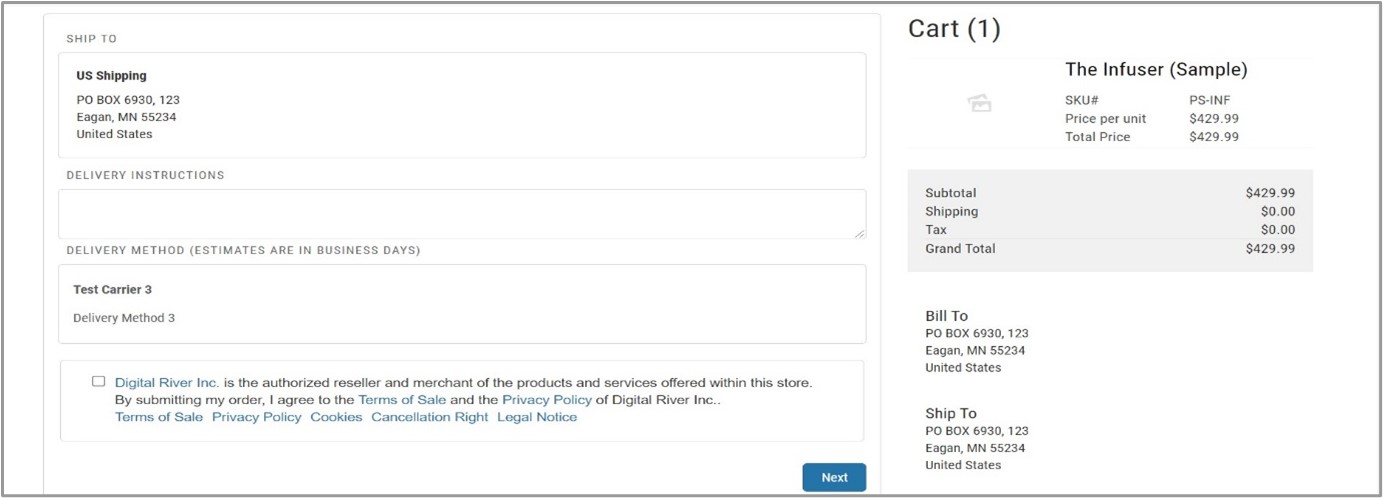 7. Select the **Terms and Conditions** checkbox and click **Next**. The **Payments** page appears.\
\
**Note**: If the cart contains subscription products, the Terms and Conditions include highlighted information about subscriptions.
7. Select the **Terms and Conditions** checkbox and click **Next**. The **Payments** page appears.\
\
**Note**: If the cart contains subscription products, the Terms and Conditions include highlighted information about subscriptions.
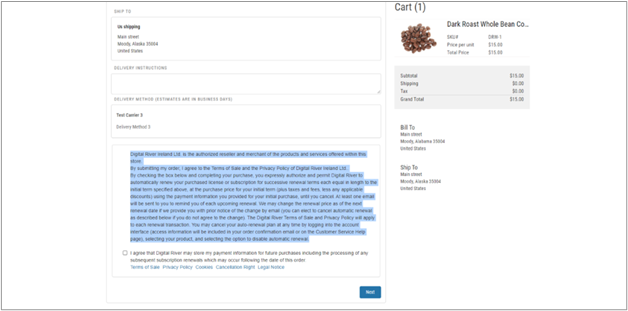 8. Select **New Payment method** or use the **existing payment** method (via the **Stored Payment** tab) and click **Continue**.\
**Note**: If the cart contains a subscription product, you will be required to save a payment method or use a previously saved payment method. Select the **Yes, please save this account and payment information for future purchases.** checkbox.\
\
Click **Continue**. The **Order Summary** page appears.\

9. Click **Place Order**.\
The checkout and order creation process is completed with an order confirmation.\

8. Select **New Payment method** or use the **existing payment** method (via the **Stored Payment** tab) and click **Continue**.\
**Note**: If the cart contains a subscription product, you will be required to save a payment method or use a previously saved payment method. Select the **Yes, please save this account and payment information for future purchases.** checkbox.\
\
Click **Continue**. The **Order Summary** page appears.\

9. Click **Place Order**.\
The checkout and order creation process is completed with an order confirmation.\
