> For the complete documentation index, see [llms.txt](https://docs.digitalriver.com/salesforce-lightning/llms.txt). Markdown versions of documentation pages are available by appending `.md` to page URLs; this page is available as [Markdown](https://docs.digitalriver.com/salesforce-lightning/salesforce-lightning-b2b-commerce-app-2.0/integrate-the-salesforce-lightning-app/step-17-integrate-the-digital-river-components-into-the-checkout-flow/integrate-the-digital-river-components-into-a-synchronous-checkout-flow/configure-screens-for-a-customized-synchronous-flow/configure-the-shipping-options-screen.md).
# Configure the Shipping Options screen
Learn how to configure the Shipping options screen to use in a synchronous checkout flow.
Use the Shipping Options screen to capture buyer information such as Bill To, Ship To, and Email. Use the following steps to configure the Shipping Options screen in a synchronous checkout flow:
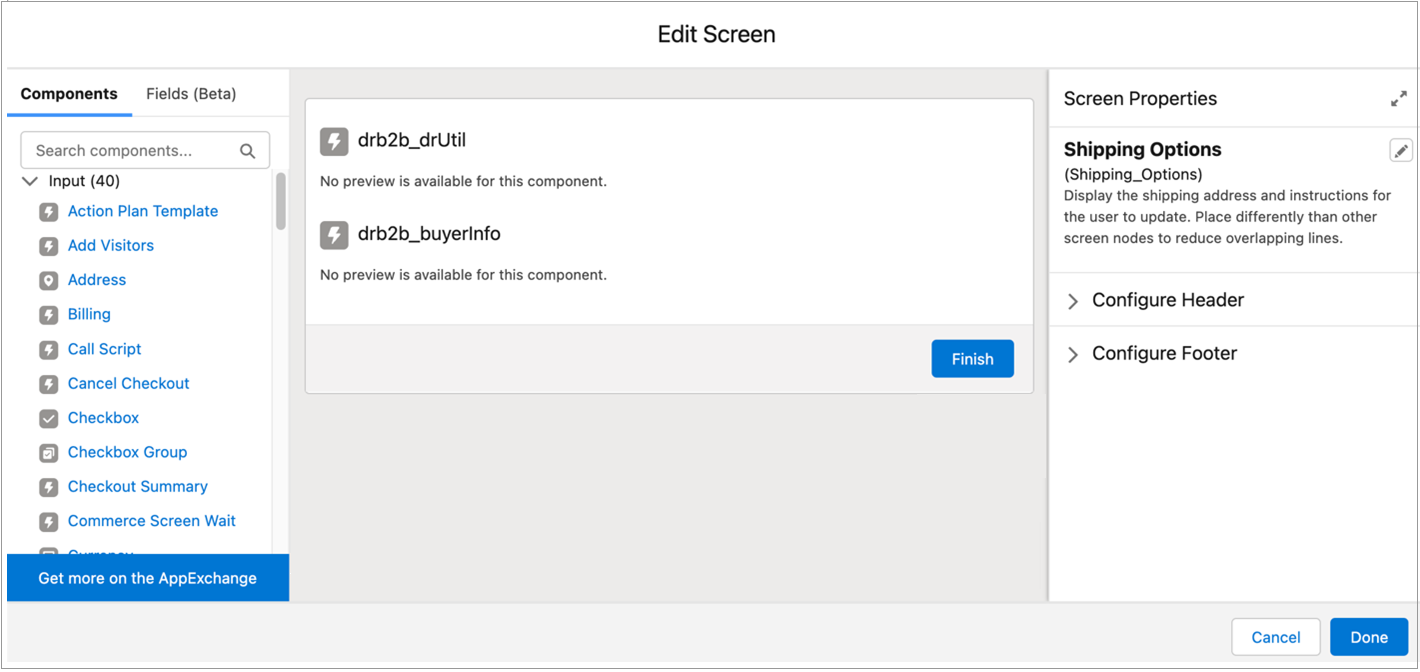
1. Open the Shipping Options screen in the flow and drag the below components into the screen:
* drb2b\_drUtil
* drb2b\_BuyerInfo
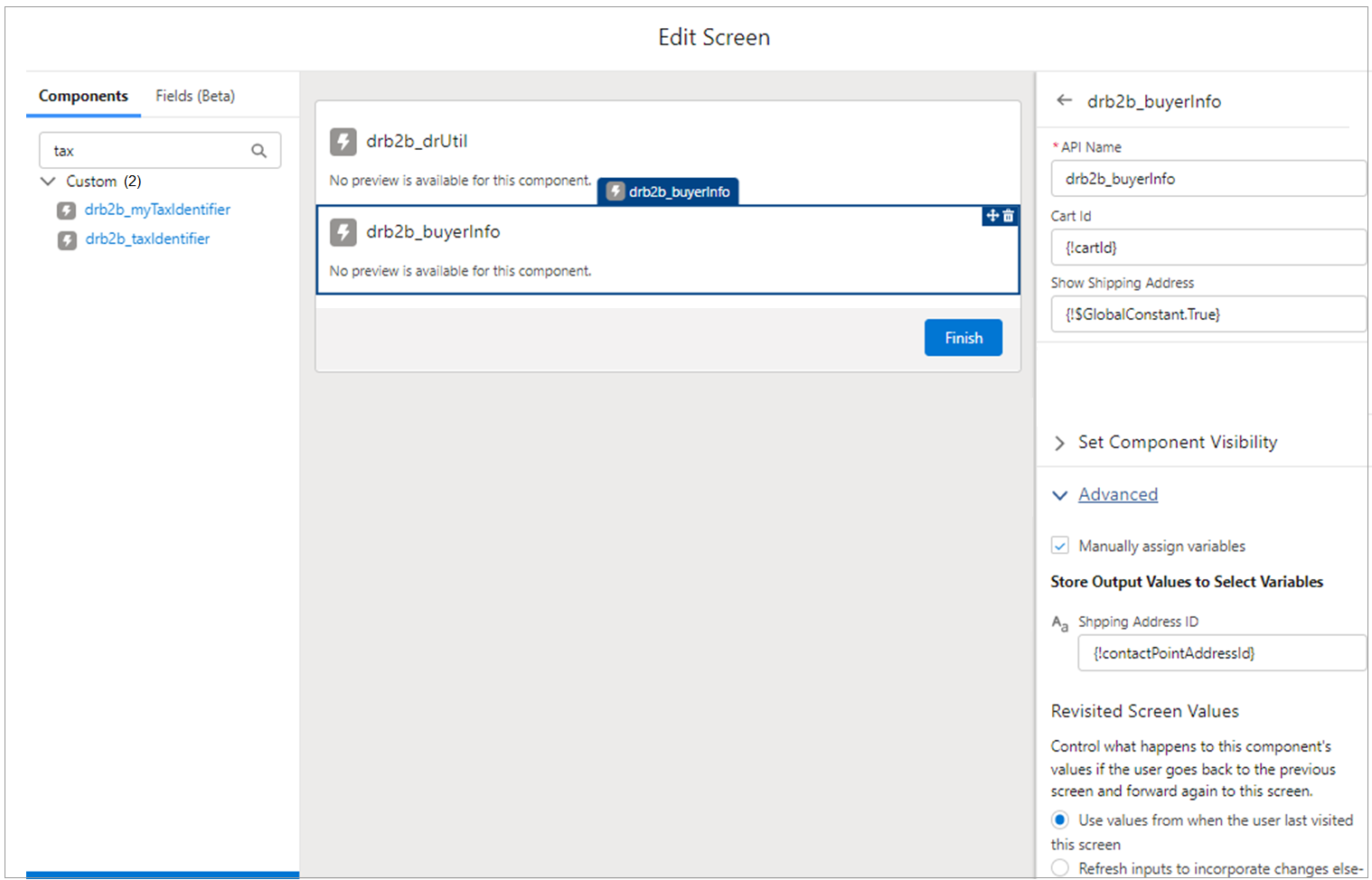
2. For the drb2b\_BuyerInfo component, enter the following values in the fields. Be sure to click through all designer attributes to ensure that Salesforce registers the default values.
* API Name - (BuyerInfo or any other name no restriction)
* Cart Id - {!cartId}
* Show Shipping Address - {!$GlobalConstant.True}
* Enable Tax Certificates: Type`{!$GlobalConstant.False}`
* Shipping Address ID: Type `{!contactPointAddressId}`.\
**Note**: The **Shipping Address ID** field appears in the **Advanced** section when you select the **Manually assign variables** check box. See [Buyer info component](/salesforce-lightning/salesforce-lightning-b2b-commerce-app-2.0/extend-the-salesforce-lightning-app/customizing-the-lightning-web-components/components/buyer-info-component.md) for more information.
3. Enter API name for the drb2b\_drutil component.
4. Click **Done**.
5. Click **Save.**