# Drag and drop (custom) components

## Custom pages and menu items

The app provides custom components for three custom pages: My Wallet, My Tax Certificates, and My Tax Identifiers. We recommended that you create these custom pages as required.

To customize a page in Experience Builder:

1. Click **Setup** ![](https://474794349-files.gitbook.io/~/files/v0/b/gitbook-x-prod.appspot.com/o/spaces%2FlKR9Leh9OBazVU7KgFio%2Fuploads%2FJa9YeG361EemI6eyqMpu%2FSetup.png?alt=media).
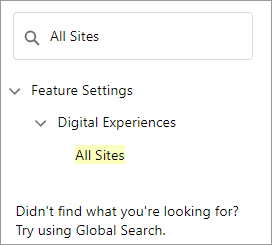
2. Type `All Sites` in the **Quick Find** field and click **All Sites**. The All Sites page appears.
   <img src="https://474794349-files.gitbook.io/~/files/v0/b/gitbook-x-prod.appspot.com/o/spaces%2FlKR9Leh9OBazVU7KgFio%2Fuploads%2FqCnGfgJ1JBzgZjt2OMuN%2FQuick%20Find%20-%20All%20Sites.png?alt=media" alt="" data-size="original">
3. From the All sites page, click **Builder**.\
   ![](https://474794349-files.gitbook.io/~/files/v0/b/gitbook-x-prod.appspot.com/o/spaces%2FlKR9Leh9OBazVU7KgFio%2Fuploads%2FubUUp5EPASpwTVM2BWD7%2FAll-Sites.png?alt=media)
4. Click **Builder**. The Experience Builder page appears\
   .![](https://474794349-files.gitbook.io/~/files/v0/b/gitbook-x-prod.appspot.com/o/spaces%2FlKR9Leh9OBazVU7KgFio%2Fuploads%2FhHA5HXVrgFCV518oj13X%2FExperience%20Builder%20Welcome%20page.png?alt=media)
5. Click **Home** at the top left corner.\
   ![](https://474794349-files.gitbook.io/~/files/v0/b/gitbook-x-prod.appspot.com/o/spaces%2FlKR9Leh9OBazVU7KgFio%2Fuploads%2FycEr0nKBgQwycdHUKgb3%2FHome%20button.png?alt=media)
6. To create a new custom page, click **+ New Page**.\
   ![](https://474794349-files.gitbook.io/~/files/v0/b/gitbook-x-prod.appspot.com/o/spaces%2FlKR9Leh9OBazVU7KgFio%2Fuploads%2Flsh44QMcFNnSydgMAEGb%2FNew%20Page.png?alt=media)\
   The page will also appear on the **Menu Item**.\
   ![](https://474794349-files.gitbook.io/~/files/v0/b/gitbook-x-prod.appspot.com/o/spaces%2FlKR9Leh9OBazVU7KgFio%2Fuploads%2FEIPsqQrTMK2RiNUS5NzN%2FMenu%20item.png?alt=media)
7. Click **Standard Page**.\
   ![](https://474794349-files.gitbook.io/~/files/v0/b/gitbook-x-prod.appspot.com/o/spaces%2FlKR9Leh9OBazVU7KgFio%2Fuploads%2Fgg6eolH2NSsWaJdGuj51%2FNew%20Page%20-%20Experience%20Builder.png?alt=media)
8. Select a preconfigured page from the list or click **+ New Blank Page**.![](https://474794349-files.gitbook.io/~/files/v0/b/gitbook-x-prod.appspot.com/o/spaces%2FlKR9Leh9OBazVU7KgFio%2Fuploads%2FwC9qCfqeshZVnagby7ha%2FNew%20Page%20-%20Experience%20Builder%20dialog.png?alt=media)
9. Complete the prompts and click **Create**.

## Create a custom menu

To add a menu:

1. Click **Setup** ![](https://474794349-files.gitbook.io/~/files/v0/b/gitbook-x-prod.appspot.com/o/spaces%2FlKR9Leh9OBazVU7KgFio%2Fuploads%2FJa9YeG361EemI6eyqMpu%2FSetup.png?alt=media).
2. Type `All Sites` in the **Quick Find** field and click **All Sites**. The All Sites page appears.

   <img src="https://474794349-files.gitbook.io/~/files/v0/b/gitbook-x-prod.appspot.com/o/spaces%2FlKR9Leh9OBazVU7KgFio%2Fuploads%2FqCnGfgJ1JBzgZjt2OMuN%2FQuick%20Find%20-%20All%20Sites.png?alt=media" alt="" data-size="original">
3. From the All sites page, click **Builder**.\
   ![](https://474794349-files.gitbook.io/~/files/v0/b/gitbook-x-prod.appspot.com/o/spaces%2FlKR9Leh9OBazVU7KgFio%2Fuploads%2FubUUp5EPASpwTVM2BWD7%2FAll-Sites.png?alt=media)
4. Click the customizable user profile dropdown in the toolbar\
   .![](https://474794349-files.gitbook.io/~/files/v0/b/gitbook-x-prod.appspot.com/o/spaces%2FlKR9Leh9OBazVU7KgFio%2Fuploads%2FHdJScYu7GRc5r8hDctof%2FUser%20profile%20dropdown.png?alt=media)
5. From the **Customizable User Profile** dropdown, select **Authenticated User Options**.![](https://474794349-files.gitbook.io/~/files/v0/b/gitbook-x-prod.appspot.com/o/spaces%2FlKR9Leh9OBazVU7KgFio%2Fuploads%2FlAQUQ8uHpOvJFsLARrfX%2FCustomizable%20User%20Profile%20Menu.png?alt=media)
6. Click the **Edit Default User Profile Menu** dropdown.\
   ![](https://474794349-files.gitbook.io/~/files/v0/b/gitbook-x-prod.appspot.com/o/spaces%2FlKR9Leh9OBazVU7KgFio%2Fuploads%2Ft0BkxUPhZzmOKAiPKOgR%2FEdit-Default-User-Profile-Menu.png?alt=media)
7. Click **+ Add Menu item**.\
   ![](https://474794349-files.gitbook.io/~/files/v0/b/gitbook-x-prod.appspot.com/o/spaces%2FlKR9Leh9OBazVU7KgFio%2Fuploads%2F02TvIEYwP1LC5xnbB5fq%2FEdit-Default-User-Profile-Menu-dialog.png?alt=media)<br>
8. Select **Site Page** from the **Type** dropdown.
   * Type a name for the menu item in the **New menu Item** field.
   * Select the custom page you want to use from the **Page** dropdown list.\
     ![](https://474794349-files.gitbook.io/~/files/v0/b/gitbook-x-prod.appspot.com/o/spaces%2FlKR9Leh9OBazVU7KgFio%2Fuploads%2FfIsxm8AJa47gjPTxyMAi%2FMenu%20item%20details.png?alt=media)
9. Click **Save Menu**.
10. Click **Publish**.

## Add a custom component to a custom page

To add a custom component to a custom page:

1. Click **Setup** ![](https://474794349-files.gitbook.io/~/files/v0/b/gitbook-x-prod.appspot.com/o/spaces%2FlKR9Leh9OBazVU7KgFio%2Fuploads%2FJa9YeG361EemI6eyqMpu%2FSetup.png?alt=media).
2. Type `All Sites` in the **Quick Find** field and click **All Sites**. The All Sites page appears.

   <img src="https://474794349-files.gitbook.io/~/files/v0/b/gitbook-x-prod.appspot.com/o/spaces%2FlKR9Leh9OBazVU7KgFio%2Fuploads%2FqCnGfgJ1JBzgZjt2OMuN%2FQuick%20Find%20-%20All%20Sites.png?alt=media" alt="" data-size="original">
3. From the All sites page, click **Builder**.\
   ![](https://474794349-files.gitbook.io/~/files/v0/b/gitbook-x-prod.appspot.com/o/spaces%2FlKR9Leh9OBazVU7KgFio%2Fuploads%2FubUUp5EPASpwTVM2BWD7%2FAll-Sites.png?alt=media)
4. Click **Home** at the top left corner.\
   ![](https://474794349-files.gitbook.io/~/files/v0/b/gitbook-x-prod.appspot.com/o/spaces%2FlKR9Leh9OBazVU7KgFio%2Fuploads%2FycEr0nKBgQwycdHUKgb3%2FHome%20button.png?alt=media)
5. Type the name of the custom page in the **Find a page** field, and click the custom page in the results list.\
   ![](https://474794349-files.gitbook.io/~/files/v0/b/gitbook-x-prod.appspot.com/o/spaces%2FlKR9Leh9OBazVU7KgFio%2Fuploads%2FA6qwRXxHeIWny1AANvxm%2FFind%20a%20page.png?alt=media)
6. Click Components ![](https://474794349-files.gitbook.io/~/files/v0/b/gitbook-x-prod.appspot.com/o/spaces%2FlKR9Leh9OBazVU7KgFio%2Fuploads%2F1spJjEQVB9jJimZiJv6W%2FComponents.png?alt=media) on the upper left side of the page. The list displays the components that you can add to the page.\
   ![](https://474794349-files.gitbook.io/~/files/v0/b/gitbook-x-prod.appspot.com/o/spaces%2FlKR9Leh9OBazVU7KgFio%2Fuploads%2FMQerORuYqMNRgQAs2JT1%2FComponents%20list.png?alt=media)
7. Drag and drop the custom component on the custom page.
8. Click **Publish**.
9. Repeat steps 5 through 8 for remaining custom components you want to add to various pages.

## Add Tax Certificates component on the My Account page

This example shows how to add the Tax Certificates component to the **My Account** page.

To add a tax certificate component on the **My Account** page:

1. Click **Setup** ![](https://474794349-files.gitbook.io/~/files/v0/b/gitbook-x-prod.appspot.com/o/spaces%2FlKR9Leh9OBazVU7KgFio%2Fuploads%2FJa9YeG361EemI6eyqMpu%2FSetup.png?alt=media).
2. Type `All Sites` in the **Quick Find** field and click **All Sites**. The All Sites page appears.

   <img src="https://474794349-files.gitbook.io/~/files/v0/b/gitbook-x-prod.appspot.com/o/spaces%2FlKR9Leh9OBazVU7KgFio%2Fuploads%2FqCnGfgJ1JBzgZjt2OMuN%2FQuick%20Find%20-%20All%20Sites.png?alt=media" alt="" data-size="original">
3. From the All sites page, click **Builder**.\
   ![](https://474794349-files.gitbook.io/~/files/v0/b/gitbook-x-prod.appspot.com/o/spaces%2FlKR9Leh9OBazVU7KgFio%2Fuploads%2FubUUp5EPASpwTVM2BWD7%2FAll-Sites.png?alt=media)
4. Click **Home** at the top left corner.\
   ![](https://474794349-files.gitbook.io/~/files/v0/b/gitbook-x-prod.appspot.com/o/spaces%2FlKR9Leh9OBazVU7KgFio%2Fuploads%2FycEr0nKBgQwycdHUKgb3%2FHome%20button.png?alt=media)
5. Type `My Account` in the **Find a page** field, and click **My Account**.\
   ![](https://474794349-files.gitbook.io/~/files/v0/b/gitbook-x-prod.appspot.com/o/spaces%2FlKR9Leh9OBazVU7KgFio%2Fuploads%2FjaBIJ0WkmhvsK2rE1QbS%2FMy%20Account%20-%20tax.png?alt=media)
6. Click Components ![](https://474794349-files.gitbook.io/~/files/v0/b/gitbook-x-prod.appspot.com/o/spaces%2FlKR9Leh9OBazVU7KgFio%2Fuploads%2F1spJjEQVB9jJimZiJv6W%2FComponents.png?alt=media) on the upper left side of the page. The list displays the components that you can add to the page.\
   ![](https://474794349-files.gitbook.io/~/files/v0/b/gitbook-x-prod.appspot.com/o/spaces%2FlKR9Leh9OBazVU7KgFio%2Fuploads%2FMQerORuYqMNRgQAs2JT1%2FComponents%20list.png?alt=media)
7. Scroll down to **drb2b\_usersTaxCertificates**.
8. Drag and drop **drb2b\_usersTaxCertificates** to the My Accounts page.
9. Click **Publish**.
