> For the complete documentation index, see [llms.txt](https://docs.digitalriver.com/salesforce-lightning/llms.txt). Markdown versions of documentation pages are available by appending `.md` to page URLs; this page is available as [Markdown](https://docs.digitalriver.com/salesforce-lightning/salesforce-lightning-b2b-commerce-app-1.2.1/user-guide/checkout-and-order-creation.md).
# Checkout and order creation
Learn more about checkout and order creation.
This section describes how to complete a checkout using the Checkout flow OOTB as provided by the Salesforce Lightning app. Actual steps may vary depending on your implementation.
To complete the checkout process and create an order:
1. Enter the keyword or SKU number in the **Search** field (or select the products to add to the cart).
2. Click **Add to Cart**.\

3. Click **Continue Shopping** to add more items, or click **View Cart** to proceed to checkout.\

4. Click **Proceed to Checkout** to pay for the items in the cart. The **Buyer Info** page will be displayed.\

5. Add required information on the **Buyer Info** page and click **Next**. The **Delivery Method** page appears.\

6. Select the **Delivery Method** and click **Next**. The **Order Review** page appears.
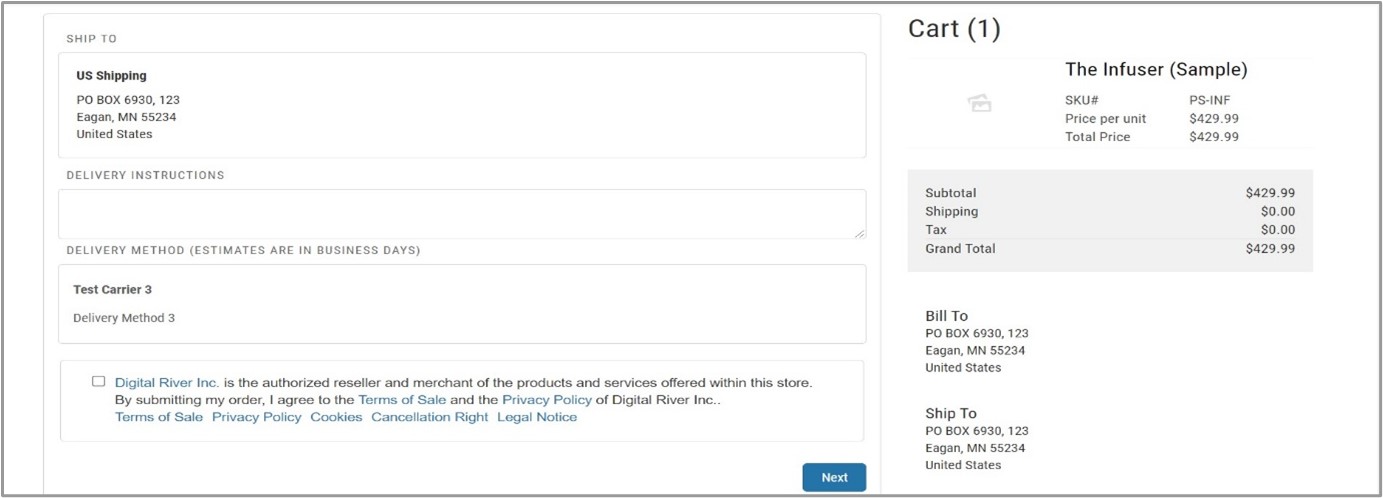 7. Select the **Terms and Conditions** checkbox and click **Next**. The **Payments** page appears.\
\
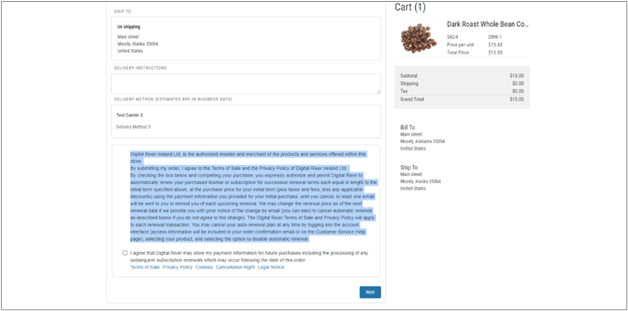
**Note**: If the cart contains subscription products, the Terms and Conditions include highlighted information about subscriptions.
7. Select the **Terms and Conditions** checkbox and click **Next**. The **Payments** page appears.\
\
**Note**: If the cart contains subscription products, the Terms and Conditions include highlighted information about subscriptions.
 8. Select **New Payment method** or use the **existing payment** method (via the **Stored Payment** tab) and click **Continue**.\
**Note**: If the cart contains a subscription product, you will be required to save a payment method or use a previously saved payment method. Select the **Yes, please save this account and payment information for future purchases.** checkbox.\
\
Click **Continue**. The **Order Summary** page appears.\

9. Click **Place Order**.\
The checkout and order creation process is completed with an order confirmation.\

8. Select **New Payment method** or use the **existing payment** method (via the **Stored Payment** tab) and click **Continue**.\
**Note**: If the cart contains a subscription product, you will be required to save a payment method or use a previously saved payment method. Select the **Yes, please save this account and payment information for future purchases.** checkbox.\
\
Click **Continue**. The **Order Summary** page appears.\

9. Click **Place Order**.\
The checkout and order creation process is completed with an order confirmation.\
