> For the complete documentation index, see [llms.txt](https://docs.digitalriver.com/adobe-commerce-extension/llms.txt). Markdown versions of documentation pages are available by appending `.md` to page URLs; this page is available as [Markdown](https://docs.digitalriver.com/adobe-commerce-extension/configure-the-digital-river-extension/shopper-experience/saving-payment-methods.md).
# Saving payment methods
Learn how shoppers can save their payment methods.
Shoppers can save their payment methods to their account during checkout or through their store account.
## Checkout
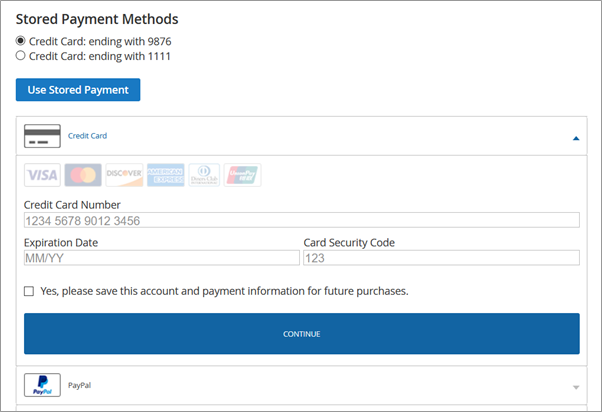
To save a credit card during checkout, select the check box named **Yes, please** **save this account and payment information for future purchases**.
## My Account
To save a credit card to the shopper's account:
1. Sign in to **My Account**, select **Stored Payment Methods**, click **Add New Payment**.\

2. Enter the billing address information and click **Continue**.\

3. Enter the credit card information.\

4. Select the **Yes, please save this account and payment information for future purchases**, and click **Add New Payment Method**.
## Using a stored payment method
To use a stored payment method during checkout, select the radio button next to the payment method you want to use and click **Use Stored Payment**.