> For the complete documentation index, see [llms.txt](https://docs.digitalriver.com/adobe-commerce-extension/llms.txt). Markdown versions of documentation pages are available by appending `.md` to page URLs; this page is available as [Markdown](https://docs.digitalriver.com/adobe-commerce-extension/adobe-commerce-extension-4.3/configure-the-digital-river-extension/shopper-experience/tax-identification-numbers.md).
# Tax identification numbers
Learn how shoppers can use tax identification numbers.
The Digital River Extension allows shoppers to enter their **Tax Identification Number** during order placement, have the ID validated, and, if appropriate, the order totals will be updated accordingly.
The shopper must:
1. Select the **This is a Business Purchase** check box on the **Shipping Address** screen, when purchasing physical goods, or on the **Payment Information** screen when purchasing digital or virtual goods.\
\
\
\

2. Enter the **Tax ID** and click **Apply**.
3. If you have checked this as a business purchase, you will be required to provide company information by entering a Company name.\
\

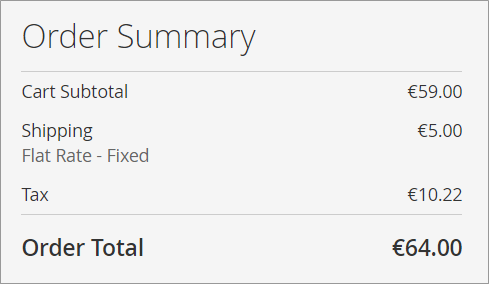
## **Order summary before application of the Tax ID**
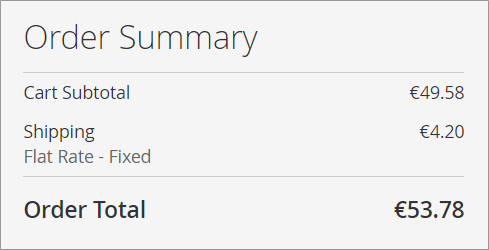
## **Order summary after application of the Tax ID**